> ## Documentation Index
> Fetch the complete documentation index at: https://docs.autype.com/llms.txt
> Use this file to discover all available pages before exploring further.
# Editor
> The Autype document editor — write Markdown, preview in real time, and use the sidebar panels for variables, styles, citations, and more.
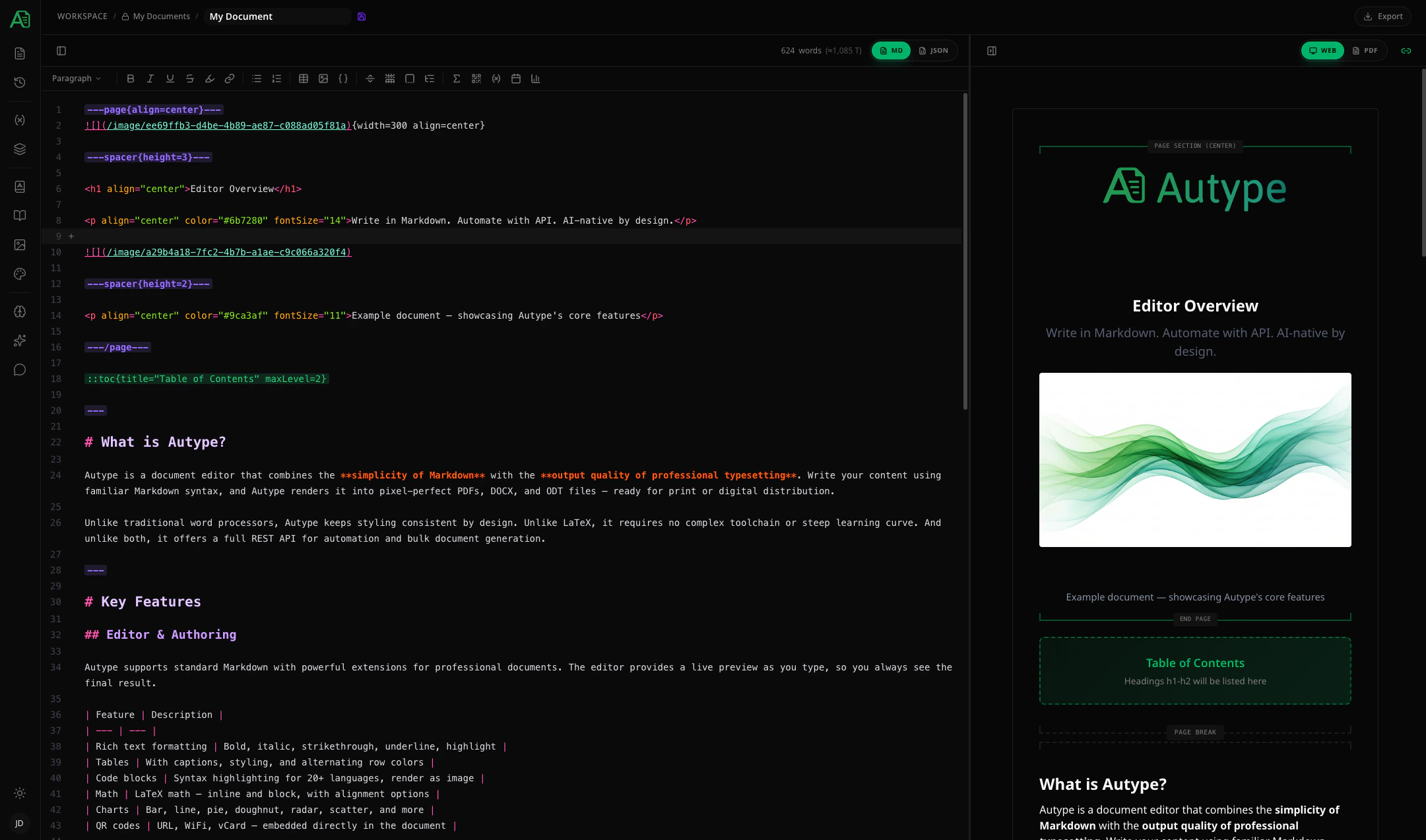
The editor is where you write and design your documents. It combines a **Markdown code editor** on the left with a **live preview** on the right, plus a **sidebar** with panels for managing document elements.
 ***
## Layout
The editor has three main areas:
| Area | Position | Description |
| --------------- | -------------- | ------------------------------------------------------------------------ |
| **Toolbar** | Top | Formatting buttons, block type selector, insert menus, export |
| **Code Editor** | Left | Write Markdown with syntax highlighting, autocomplete, and inline errors |
| **Preview** | Right | Live-rendered preview of your document (Web or PDF mode) |
| **Sidebar** | Far left/right | Panels for variables, styles, citations, images, and more |
On mobile, the editor and preview are shown as separate tabs — switch between them with the **Editor** / **Preview** toggle.
***
## Toolbar
The toolbar provides quick access to formatting and inserting elements. Hovering over any toolbar button shows a **tooltip** describing its function.
***
## Layout
The editor has three main areas:
| Area | Position | Description |
| --------------- | -------------- | ------------------------------------------------------------------------ |
| **Toolbar** | Top | Formatting buttons, block type selector, insert menus, export |
| **Code Editor** | Left | Write Markdown with syntax highlighting, autocomplete, and inline errors |
| **Preview** | Right | Live-rendered preview of your document (Web or PDF mode) |
| **Sidebar** | Far left/right | Panels for variables, styles, citations, images, and more |
On mobile, the editor and preview are shown as separate tabs — switch between them with the **Editor** / **Preview** toggle.
***
## Toolbar
The toolbar provides quick access to formatting and inserting elements. Hovering over any toolbar button shows a **tooltip** describing its function.
 ### Block type selector
A dropdown at the left of the toolbar lets you change the current block type:
| Block type | Markdown prefix |
| -------------- | ----------------- |
| Paragraph | *(none)* |
| Paragraph 2 | `\| ` |
| Heading 1–6 | `# ` to `###### ` |
| Code block | ` ``` ` |
| Unordered list | `- ` |
| Ordered list | `1. ` |
### Inline formatting buttons
To apply formatting, **select the text** you want to format first, then click the corresponding button. To remove formatting, select the formatted text (including the Markdown syntax characters) and click the button again.
| Button | Action | Markdown syntax |
| --------------------------------------- | ------------- | --------------- |
| | Bold | `**text**` |
| | Italic | `*text*` |
| | Underline | `++text++` |
| | Strikethrough | `~~text~~` |
| | Highlight | `==text==` |
| | Insert link | `[text](url)` |
### Insert menus
The toolbar includes additional buttons and dropdown menus for inserting:
* **Bullet List** / **Numbered List** — toggle list formatting
* **Table** — insert a table with a size picker
* **Image** — standard Markdown image or image directive
* **Code Block** — insert a fenced code block
* **Spacer** — insert vertical spacing (1–3 lines or custom px)
* **Page Break** — insert a page break (portrait or landscape)
* **Page Section** — insert a page section with alignment (top, center, bottom)
* **Indices** — TOC, list of figures, list of tables, list of abbreviations, bibliography
* **Math** — insert a block math expression
* **QR Code** — URL, WiFi, or vCard
* **Variable** — insert an inline variable reference
* **Date** — insert a dynamic date variable with format, offset, and timezone
* **Chart** — bar, line, pie, doughnut, radar, polar, scatter, bubble
***
## Preview modes
The preview pane supports two rendering modes, toggled via the preview header. Which mode you prefer to work with is largely a matter of personal preference — both show your document content, just in different ways.
### Web preview (HTML)
### Block type selector
A dropdown at the left of the toolbar lets you change the current block type:
| Block type | Markdown prefix |
| -------------- | ----------------- |
| Paragraph | *(none)* |
| Paragraph 2 | `\| ` |
| Heading 1–6 | `# ` to `###### ` |
| Code block | ` ``` ` |
| Unordered list | `- ` |
| Ordered list | `1. ` |
### Inline formatting buttons
To apply formatting, **select the text** you want to format first, then click the corresponding button. To remove formatting, select the formatted text (including the Markdown syntax characters) and click the button again.
| Button | Action | Markdown syntax |
| --------------------------------------- | ------------- | --------------- |
| | Bold | `**text**` |
| | Italic | `*text*` |
| | Underline | `++text++` |
| | Strikethrough | `~~text~~` |
| | Highlight | `==text==` |
| | Insert link | `[text](url)` |
### Insert menus
The toolbar includes additional buttons and dropdown menus for inserting:
* **Bullet List** / **Numbered List** — toggle list formatting
* **Table** — insert a table with a size picker
* **Image** — standard Markdown image or image directive
* **Code Block** — insert a fenced code block
* **Spacer** — insert vertical spacing (1–3 lines or custom px)
* **Page Break** — insert a page break (portrait or landscape)
* **Page Section** — insert a page section with alignment (top, center, bottom)
* **Indices** — TOC, list of figures, list of tables, list of abbreviations, bibliography
* **Math** — insert a block math expression
* **QR Code** — URL, WiFi, or vCard
* **Variable** — insert an inline variable reference
* **Date** — insert a dynamic date variable with format, offset, and timezone
* **Chart** — bar, line, pie, doughnut, radar, polar, scatter, bubble
***
## Preview modes
The preview pane supports two rendering modes, toggled via the preview header. Which mode you prefer to work with is largely a matter of personal preference — both show your document content, just in different ways.
### Web preview (HTML)
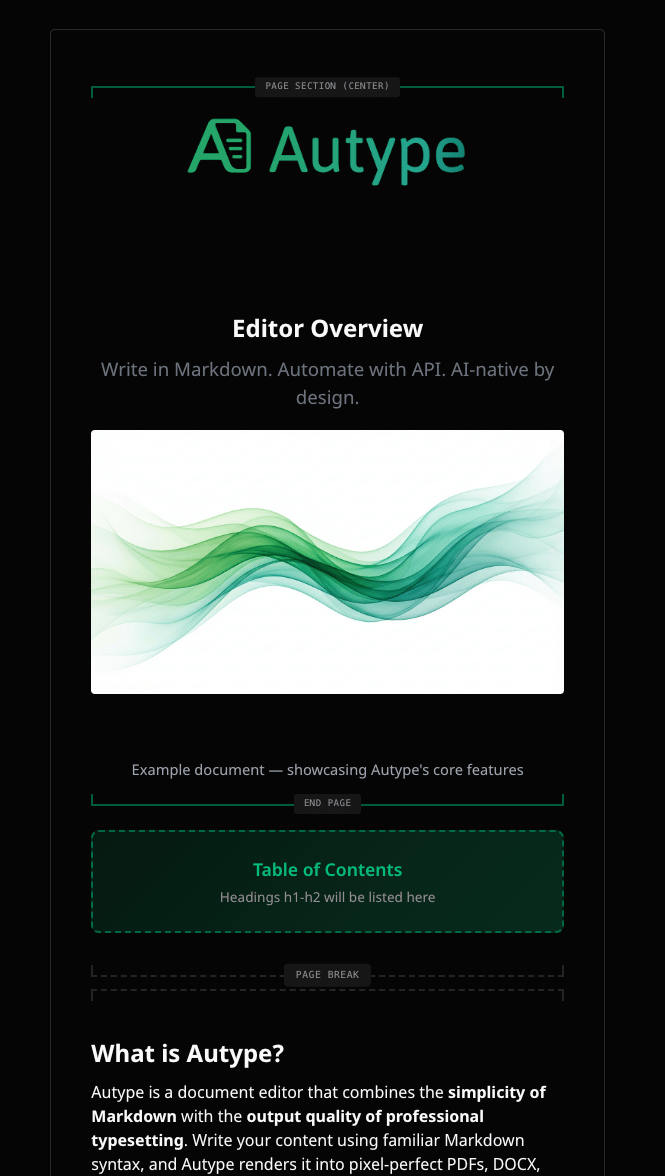 * Renders your document as styled HTML **in real time** — updates instantly as you type
* Shows **variable placeholders** as-is (not yet processed), so you can see where variables are used
* Best for **everyday writing and editing** — the instant feedback makes it ideal for checking that your Markdown syntax is interpreted as expected
* Shows a close approximation of the final output, though page layout details (margins, headers, footers, page breaks) are not represented
### PDF preview
* Renders your document as styled HTML **in real time** — updates instantly as you type
* Shows **variable placeholders** as-is (not yet processed), so you can see where variables are used
* Best for **everyday writing and editing** — the instant feedback makes it ideal for checking that your Markdown syntax is interpreted as expected
* Shows a close approximation of the final output, though page layout details (margins, headers, footers, page breaks) are not represented
### PDF preview
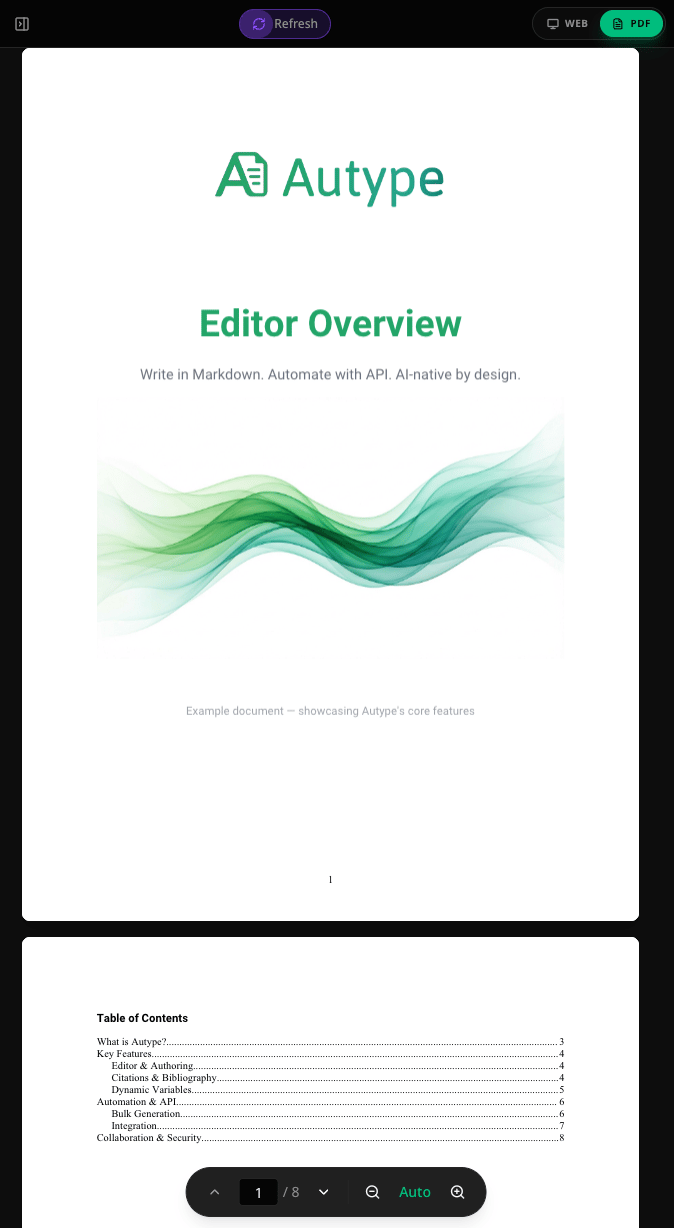 * Shows the **fully rendered document** exactly as it will look when exported — including page layout, margins, headers, footers, and page breaks
* Best for **fine-tuning layout** and verifying the final appearance of your document
* A new render is triggered after saving (either via the auto-save interval or a manual save)
* A **refresh indicator** shows when a new render is in progress
Rendering time depends on document size and current server load — it can take up to **1 minute** for large documents. Documents with many images will take longer to render.
***
## Auto-save
Your document is **continuously synchronized with the server in real time**. Every change you make is sent to the server immediately, ensuring that an up-to-date version is always persisted.
You can trigger a manual save by pressing **⌘S** (Mac) or **Ctrl+S** (Windows/Linux), or by clicking the **save icon** next to the document name in the top bar.
### Save icon states
The save icon next to the document name indicates the current sync status:
| Icon | State | Description |
| ---------------------------------------------- | -------------------- | ------------------------------------------------------------------------------- |
| | **Synced** | All changes have been saved successfully |
| | **Auto-save active** | Auto-save is enabled — changes will be saved automatically at the next interval |
In addition to continuous sync, **snapshots** are automatically created at regular intervals. These snapshots can be accessed through the [Version History](/getting-started/editor/sidebar-history) panel to review or restore previous states of your document.
On unstable network connections, synchronization may be interrupted temporarily. Changes made offline will be synced once the connection is restored. If you've had the editor open for a long time without activity and experience issues, a simple **page reload** will re-establish the connection and resolve most problems.
***
## Real-time validation
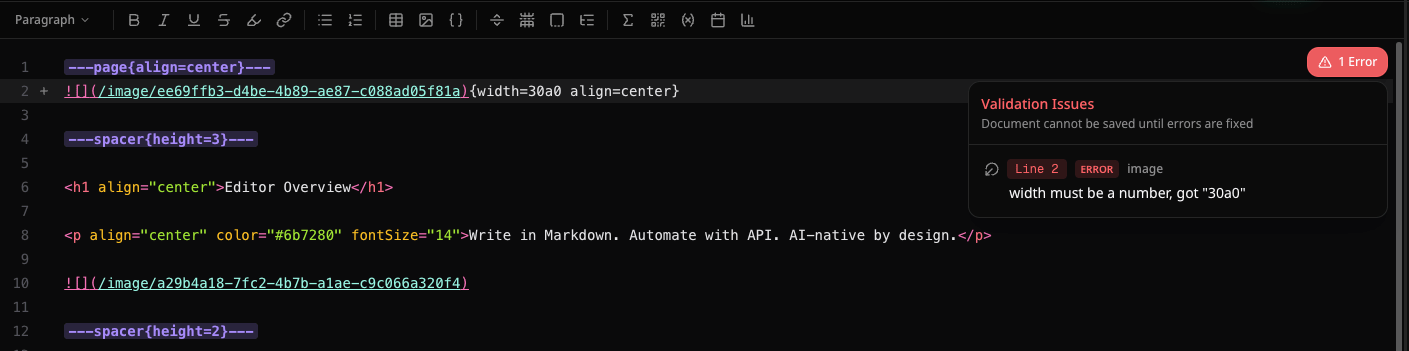
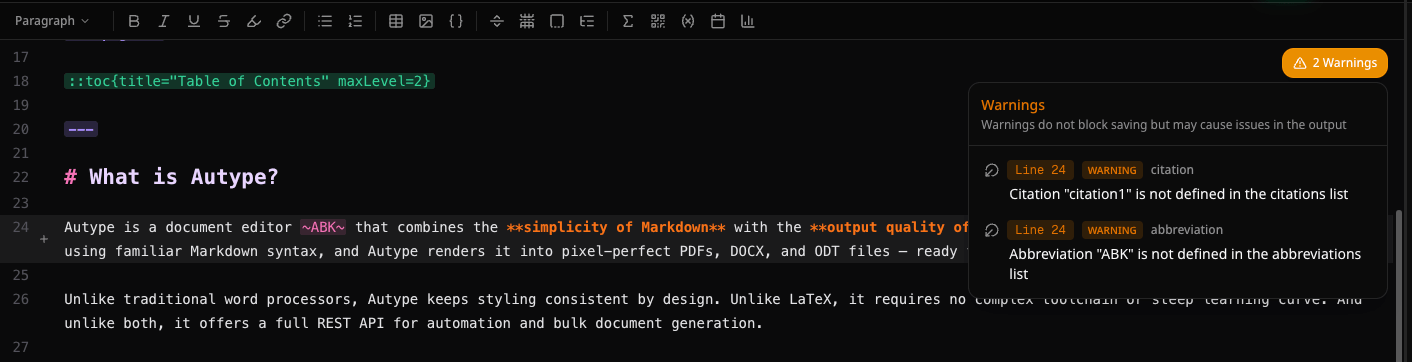
The editor highlights syntax errors and warnings directly in the code. **Clicking on an error or warning** navigates you directly to the line where the problem occurs. Hover over an underlined section to see the error message in a tooltip.
### Errors
**Red underlines** indicate syntax errors — for example, invalid attribute values or unclosed directives. Documents with errors **cannot create a new version** and will **not trigger a new PDF render** or any other export format.
* Shows the **fully rendered document** exactly as it will look when exported — including page layout, margins, headers, footers, and page breaks
* Best for **fine-tuning layout** and verifying the final appearance of your document
* A new render is triggered after saving (either via the auto-save interval or a manual save)
* A **refresh indicator** shows when a new render is in progress
Rendering time depends on document size and current server load — it can take up to **1 minute** for large documents. Documents with many images will take longer to render.
***
## Auto-save
Your document is **continuously synchronized with the server in real time**. Every change you make is sent to the server immediately, ensuring that an up-to-date version is always persisted.
You can trigger a manual save by pressing **⌘S** (Mac) or **Ctrl+S** (Windows/Linux), or by clicking the **save icon** next to the document name in the top bar.
### Save icon states
The save icon next to the document name indicates the current sync status:
| Icon | State | Description |
| ---------------------------------------------- | -------------------- | ------------------------------------------------------------------------------- |
| | **Synced** | All changes have been saved successfully |
| | **Auto-save active** | Auto-save is enabled — changes will be saved automatically at the next interval |
In addition to continuous sync, **snapshots** are automatically created at regular intervals. These snapshots can be accessed through the [Version History](/getting-started/editor/sidebar-history) panel to review or restore previous states of your document.
On unstable network connections, synchronization may be interrupted temporarily. Changes made offline will be synced once the connection is restored. If you've had the editor open for a long time without activity and experience issues, a simple **page reload** will re-establish the connection and resolve most problems.
***
## Real-time validation
The editor highlights syntax errors and warnings directly in the code. **Clicking on an error or warning** navigates you directly to the line where the problem occurs. Hover over an underlined section to see the error message in a tooltip.
### Errors
**Red underlines** indicate syntax errors — for example, invalid attribute values or unclosed directives. Documents with errors **cannot create a new version** and will **not trigger a new PDF render** or any other export format.
 ### Warnings
**Yellow underlines** indicate warnings — for example, missing citation references or undefined abbreviations. Documents with warnings can still be **saved and rendered** normally, but you should review them to ensure the output is as expected.
### Warnings
**Yellow underlines** indicate warnings — for example, missing citation references or undefined abbreviations. Documents with warnings can still be **saved and rendered** normally, but you should review them to ensure the output is as expected.
 ***
## Real-time collaboration
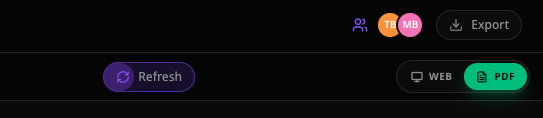
When multiple users have the same document open, their **avatars** appear in the top bar so you can see who is currently active.
***
## Real-time collaboration
When multiple users have the same document open, their **avatars** appear in the top bar so you can see who is currently active.
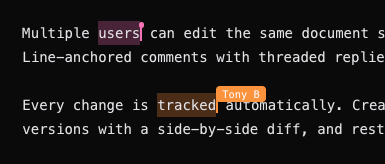
 Inside the editor, each collaborator has a **colored cursor** and their **text selections** are visible to everyone. Hover over a cursor to see who is typing. All changes from other users appear in real time.
 ***
## Export
Click the **download button** in the top bar to export your document:
***
## Export
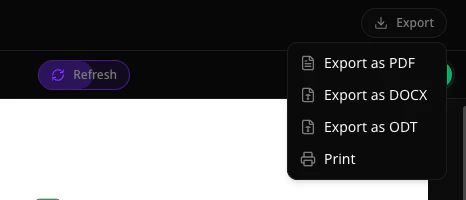
Click the **download button** in the top bar to export your document:
 | Format | Description |
| -------- | ----------------------------------------------------- |
| **PDF** | Portable Document Format — most common for sharing |
| **DOCX** | Microsoft Word format — editable in Word, Google Docs |
| **ODT** | Open Document Format — editable in LibreOffice |
The exported document will look virtually identical to the **PDF preview** (\~99% match). Minimal differences may occur if a font is rendered slightly differently between the preview and the export engine.
***
## Sidebar panels
The sidebar on the left provides access to all document management panels. Click an icon to open the corresponding panel.
| Icon | Panel | Description |
| ---------------------------------------- | -------------------------------------------------------------- | ----------------------------------------------- |
| | [Documents](/getting-started/editor/sidebar-documents) | Switch between documents in the current project |
| | [Version History](/getting-started/editor/sidebar-history) | View and restore previous versions |
| | [Variables](/getting-started/editor/sidebar-variables) | Manage document variables |
| | [Bulk Generation](/getting-started/editor/sidebar-bulk) | Generate multiple documents from a template |
| | [Abbreviations](/getting-started/editor/sidebar-abbreviations) | Define abbreviation expansions |
| | [Citations](/getting-started/editor/sidebar-citations) | Manage bibliography sources |
| | [Images](/getting-started/editor/sidebar-images) | Upload and manage document images |
| | [Styles](/getting-started/editor/sidebar-styles) | Manage and apply document style presets |
| | [Knowledge Base](/getting-started/editor/sidebar-knowledge) | Attach reference documents for AI context |
| | [AI Assistant](/getting-started/editor/sidebar-chat) | Chat with AI to edit your document |
| | [Comments](/getting-started/editor/sidebar-comments) | Add and manage inline comments |
### JSON View
At the bottom of the sidebar, a **JSON view** toggle lets you switch from Markdown editing to the raw JSON document schema. The JSON represents the **complete document structure** — it can be used directly with the [Developer API](/api-reference/introduction) and contains everything except uploaded media files.
| Format | Description |
| -------- | ----------------------------------------------------- |
| **PDF** | Portable Document Format — most common for sharing |
| **DOCX** | Microsoft Word format — editable in Word, Google Docs |
| **ODT** | Open Document Format — editable in LibreOffice |
The exported document will look virtually identical to the **PDF preview** (\~99% match). Minimal differences may occur if a font is rendered slightly differently between the preview and the export engine.
***
## Sidebar panels
The sidebar on the left provides access to all document management panels. Click an icon to open the corresponding panel.
| Icon | Panel | Description |
| ---------------------------------------- | -------------------------------------------------------------- | ----------------------------------------------- |
| | [Documents](/getting-started/editor/sidebar-documents) | Switch between documents in the current project |
| | [Version History](/getting-started/editor/sidebar-history) | View and restore previous versions |
| | [Variables](/getting-started/editor/sidebar-variables) | Manage document variables |
| | [Bulk Generation](/getting-started/editor/sidebar-bulk) | Generate multiple documents from a template |
| | [Abbreviations](/getting-started/editor/sidebar-abbreviations) | Define abbreviation expansions |
| | [Citations](/getting-started/editor/sidebar-citations) | Manage bibliography sources |
| | [Images](/getting-started/editor/sidebar-images) | Upload and manage document images |
| | [Styles](/getting-started/editor/sidebar-styles) | Manage and apply document style presets |
| | [Knowledge Base](/getting-started/editor/sidebar-knowledge) | Attach reference documents for AI context |
| | [AI Assistant](/getting-started/editor/sidebar-chat) | Chat with AI to edit your document |
| | [Comments](/getting-started/editor/sidebar-comments) | Add and manage inline comments |
### JSON View
At the bottom of the sidebar, a **JSON view** toggle lets you switch from Markdown editing to the raw JSON document schema. The JSON represents the **complete document structure** — it can be used directly with the [Developer API](/api-reference/introduction) and contains everything except uploaded media files.
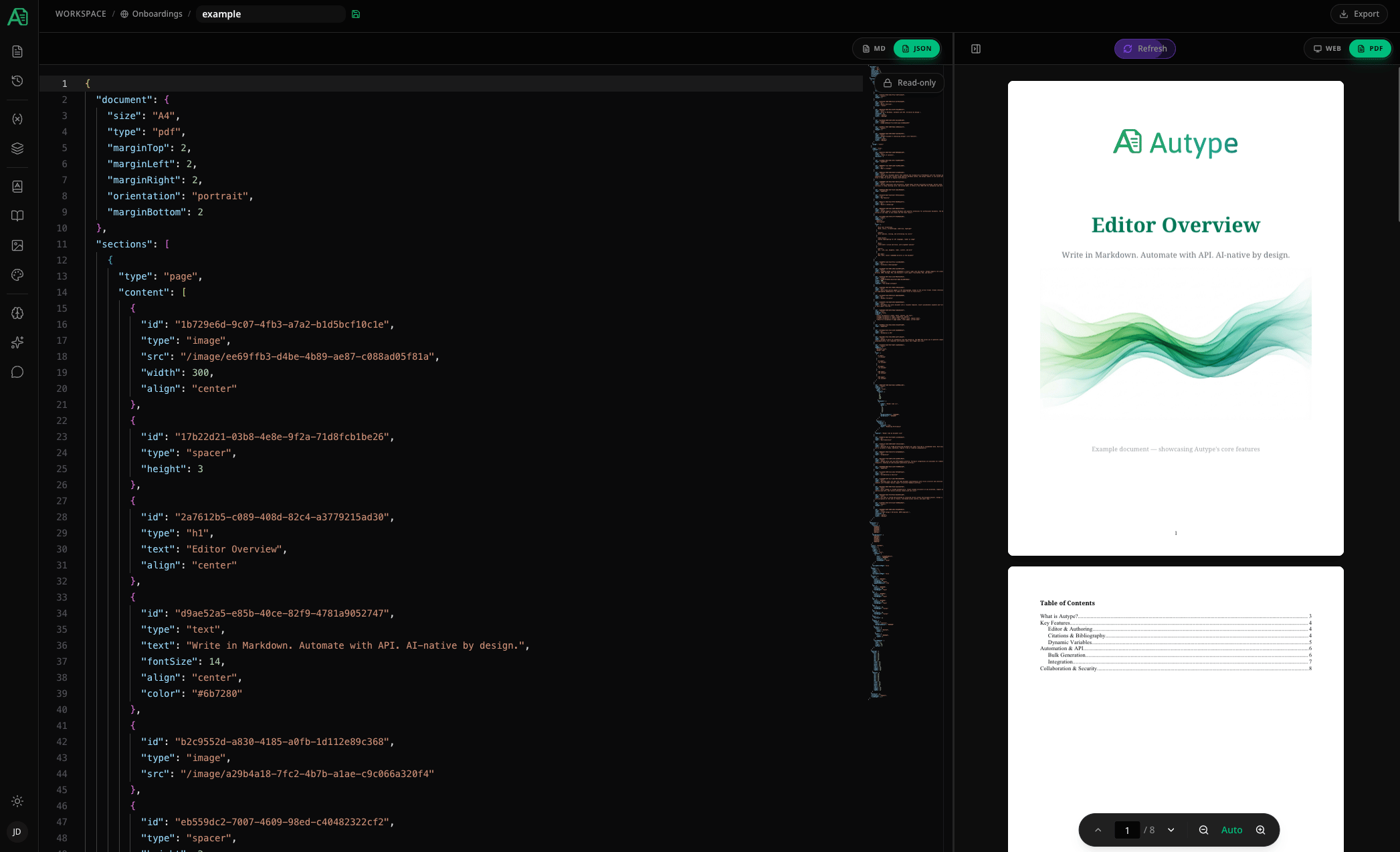 In the top-right corner of the JSON editor, you'll find a **"Read-only"** button. By default, the JSON view is read-only for safe inspection. Clicking this button enables editing mode, allowing you to modify the JSON directly.
Only edit the JSON if you have a solid understanding of JSON and the document schema format. Invalid changes can break your document. JSON editing is **not available during live collaboration sessions** to prevent inconsistent document states between collaborators.
In the top-right corner of the JSON editor, you'll find a **"Read-only"** button. By default, the JSON view is read-only for safe inspection. Clicking this button enables editing mode, allowing you to modify the JSON directly.
Only edit the JSON if you have a solid understanding of JSON and the document schema format. Invalid changes can break your document. JSON editing is **not available during live collaboration sessions** to prevent inconsistent document states between collaborators.