> ## Documentation Index
> Fetch the complete documentation index at: https://docs.autype.com/llms.txt
> Use this file to discover all available pages before exploring further.
# Styles Panel
> Create, manage, and apply document style presets — control fonts, colors, spacing, headers, footers, and more.
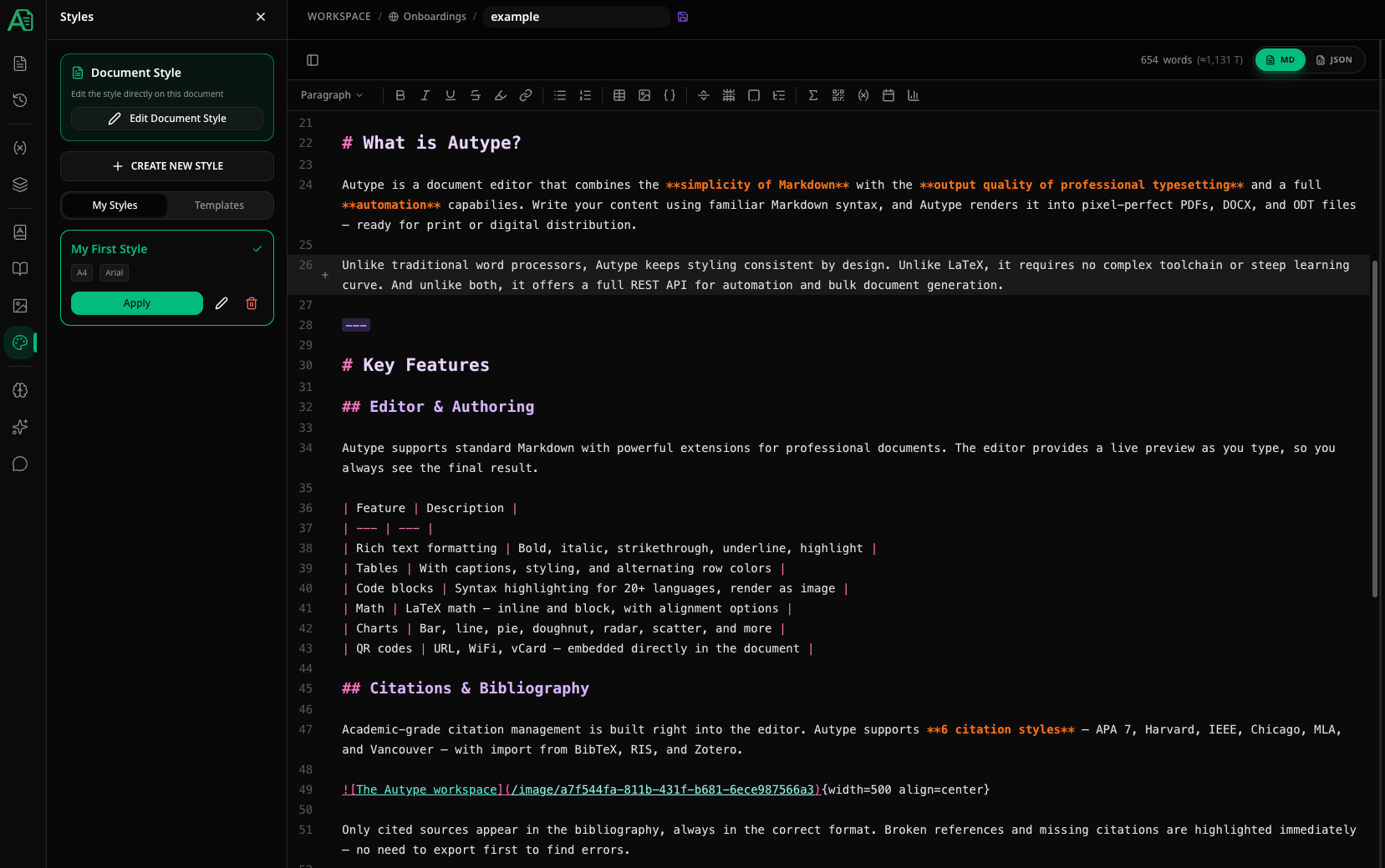
The **Styles** panel () lets you create, manage, and apply document style presets. Styles control every visual aspect of your exported document — fonts, colors, spacing, headers, footers, tables, charts, and more.
 ***
## How styles work
Styles in Autype follow a **copy-on-apply** model:
1. You create a **style preset** (or choose a template) that defines fonts, colors, spacing, headers, footers, etc.
2. When you click **Apply** or **Use Template**, the style configuration is **copied into the document**. The document now has its own independent copy of that style.
3. You can further customize the document's style via **Edit Document Style** at the top of the panel. These changes only affect the current document.
If you later edit a style preset, documents that were previously styled with it are **not** updated automatically. You must re-apply the style to propagate changes. This is by design — otherwise modifying a shared preset would unexpectedly alter all documents that use it.
***
## Sidebar overview
The panel has two main areas at the top:
* **Document Style** — click **Edit Document Style** to open the Style Editor and modify the current document's styling directly. Changes apply only to this document.
* **Create New Style** — creates a reusable style preset that can be applied to any document.
Below that, two sub-tabs organize your styles:
### My Styles
Lists all style presets you have created. Each card shows the style name, page size, and default font. Actions per style:
* **Apply / Re-apply** — applies the style to the current document
* **Edit** — opens the Style Editor to modify the preset
* **Delete** — permanently removes the preset
### Templates
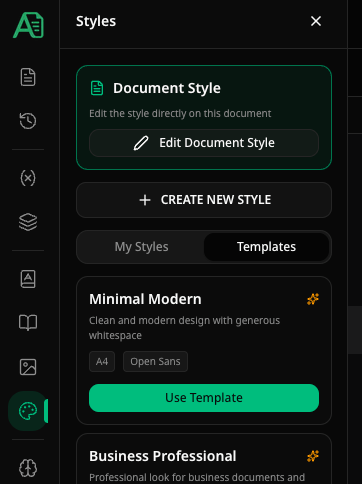
Pre-made style templates provided by Autype. Click **Use Template** to apply a template to your document.
***
## How styles work
Styles in Autype follow a **copy-on-apply** model:
1. You create a **style preset** (or choose a template) that defines fonts, colors, spacing, headers, footers, etc.
2. When you click **Apply** or **Use Template**, the style configuration is **copied into the document**. The document now has its own independent copy of that style.
3. You can further customize the document's style via **Edit Document Style** at the top of the panel. These changes only affect the current document.
If you later edit a style preset, documents that were previously styled with it are **not** updated automatically. You must re-apply the style to propagate changes. This is by design — otherwise modifying a shared preset would unexpectedly alter all documents that use it.
***
## Sidebar overview
The panel has two main areas at the top:
* **Document Style** — click **Edit Document Style** to open the Style Editor and modify the current document's styling directly. Changes apply only to this document.
* **Create New Style** — creates a reusable style preset that can be applied to any document.
Below that, two sub-tabs organize your styles:
### My Styles
Lists all style presets you have created. Each card shows the style name, page size, and default font. Actions per style:
* **Apply / Re-apply** — applies the style to the current document
* **Edit** — opens the Style Editor to modify the preset
* **Delete** — permanently removes the preset
### Templates
Pre-made style templates provided by Autype. Click **Use Template** to apply a template to your document.
 ***
## Style Editor
The Style Editor is a full-screen modal with a sidebar navigation on the left. It is organized into three groups: **Layout**, **Elements**, and **Advanced**.
You can also generate a complete style using AI — click the **Generate with AI** button in the top-right corner, describe the look you want, and the AI will configure typography, colors, and spacing for you.
***
### Document
Configure the page layout for your document.
***
## Style Editor
The Style Editor is a full-screen modal with a sidebar navigation on the left. It is organized into three groups: **Layout**, **Elements**, and **Advanced**.
You can also generate a complete style using AI — click the **Generate with AI** button in the top-right corner, describe the look you want, and the AI will configure typography, colors, and spacing for you.
***
### Document
Configure the page layout for your document.
 | Setting | Options |
| --------------- | --------------------------------------------------------------- |
| **Style Name** | Name for the reusable preset (not shown in document style mode) |
| **Page Size** | A4, A3, A5, Letter, Legal |
| **Orientation** | Portrait, Landscape |
| **Margins** | Top, Bottom, Left, Right (in cm) |
***
### Typography
Set the global default font and configure heading numbering, figure captions, table captions, and code captions.
| Setting | Options |
| --------------- | --------------------------------------------------------------- |
| **Style Name** | Name for the reusable preset (not shown in document style mode) |
| **Page Size** | A4, A3, A5, Letter, Legal |
| **Orientation** | Portrait, Landscape |
| **Margins** | Top, Bottom, Left, Right (in cm) |
***
### Typography
Set the global default font and configure heading numbering, figure captions, table captions, and code captions.
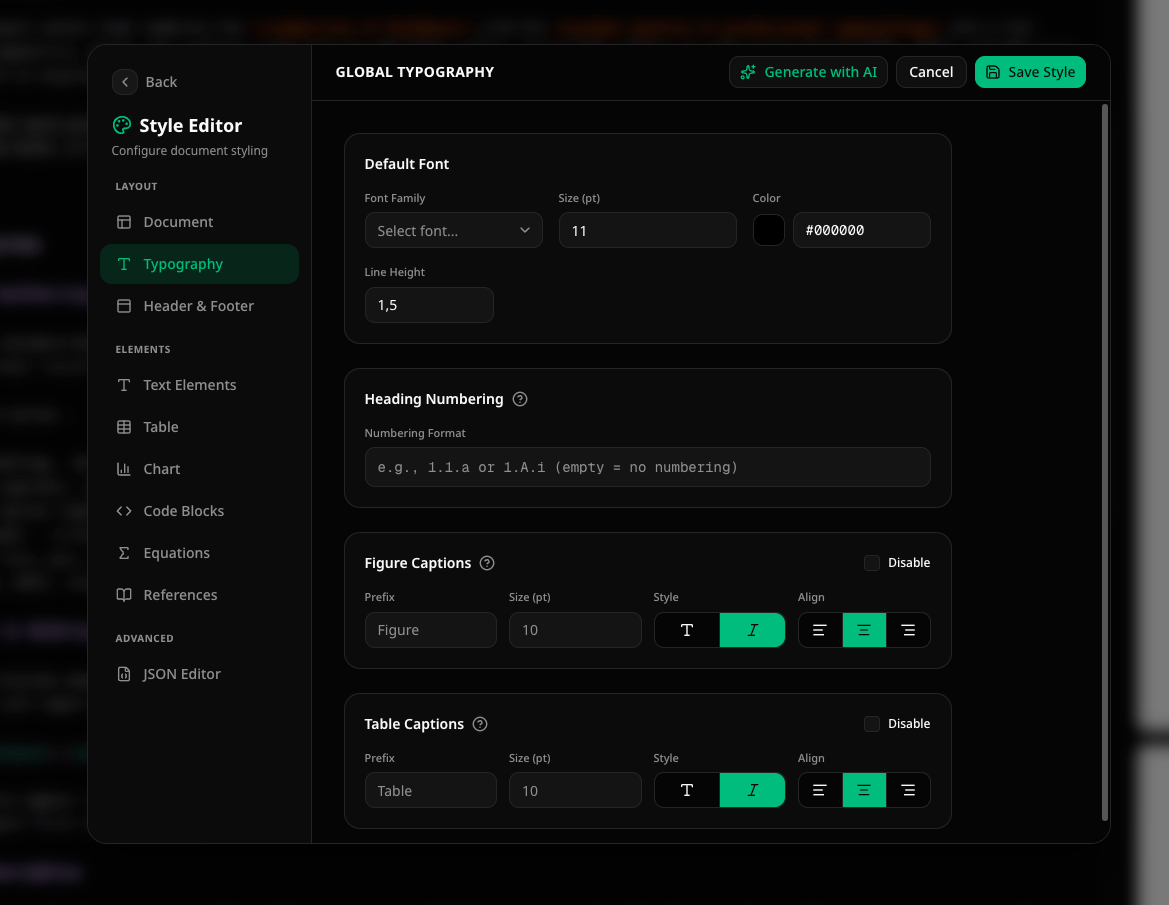 **Default Font** — applies to all text unless overridden by element-specific styles:
| Setting | Description |
| --------------- | ------------------------------------- |
| **Font Family** | Choose from a wide selection of fonts |
| **Font Size** | Size in points |
| **Color** | Text color |
| **Line Height** | Line spacing multiplier (e.g., 1.5) |
**Heading Numbering** — automatically numbers headings using a format string:
| Character | Style |
| --------- | ---------------------------- |
| `1` | Numeric (1, 2, 3) |
| `a` | Lowercase letters (a, b, c) |
| `A` | Uppercase letters (A, B, C) |
| `i` | Roman lowercase (i, ii, iii) |
| `I` | Roman uppercase (I, II, III) |
| `α` | Greek letters |
Example: `1.1.a` produces headings like *1. Title*, *1.1 Section*, *1.1.a Subsection*.
**Figure Captions** — controls how image and chart captions are rendered:
| Setting | Description |
| --------------- | ------------------------------------------------------- |
| **Prefix** | Text before the number (e.g., `Figure`, `Abb.`, `Fig.`) |
| **Size** | Font size in points |
| **Font Family** | Override or inherit from defaults |
| **Weight** | Normal or Bold |
| **Style** | Normal or Italic |
| **Color** | Caption text color |
| **Align** | Left, Center, or Right |
| **Spacing** | Space between the image/chart and the caption |
| **Disable** | Turn off figure captions entirely |
A figure caption renders as: **Figure 1: Your caption text**. The number is auto-incremented across the document. Set the prefix to `"Abb."` for German documents or `"Fig."` for abbreviated English.
**Table Captions** — same options as figure captions but for tables. A table caption renders as: **Table 1: Your caption text** (prefix defaults to `Table`).
**Code Captions** — same options as figure captions but for code blocks. A code caption renders as: **Listing 1: Your caption text** (prefix defaults to `Listing`). Code blocks with a caption are automatically collected in the [List of Code Listings](/markup-reference/indices#list-of-code-listings).
Diagram code blocks (e.g., `mermaid`, `plantuml`) use the **Figure Captions** style when rendered as images. The **Code Captions** style applies when `renderAsImage=false` or for non-diagram code blocks.
***
### Header & Footer
Configure the content that appears at the top and bottom of every page. Each section (header and footer) has a **3-column layout**: left, center, and right.
**Default Font** — applies to all text unless overridden by element-specific styles:
| Setting | Description |
| --------------- | ------------------------------------- |
| **Font Family** | Choose from a wide selection of fonts |
| **Font Size** | Size in points |
| **Color** | Text color |
| **Line Height** | Line spacing multiplier (e.g., 1.5) |
**Heading Numbering** — automatically numbers headings using a format string:
| Character | Style |
| --------- | ---------------------------- |
| `1` | Numeric (1, 2, 3) |
| `a` | Lowercase letters (a, b, c) |
| `A` | Uppercase letters (A, B, C) |
| `i` | Roman lowercase (i, ii, iii) |
| `I` | Roman uppercase (I, II, III) |
| `α` | Greek letters |
Example: `1.1.a` produces headings like *1. Title*, *1.1 Section*, *1.1.a Subsection*.
**Figure Captions** — controls how image and chart captions are rendered:
| Setting | Description |
| --------------- | ------------------------------------------------------- |
| **Prefix** | Text before the number (e.g., `Figure`, `Abb.`, `Fig.`) |
| **Size** | Font size in points |
| **Font Family** | Override or inherit from defaults |
| **Weight** | Normal or Bold |
| **Style** | Normal or Italic |
| **Color** | Caption text color |
| **Align** | Left, Center, or Right |
| **Spacing** | Space between the image/chart and the caption |
| **Disable** | Turn off figure captions entirely |
A figure caption renders as: **Figure 1: Your caption text**. The number is auto-incremented across the document. Set the prefix to `"Abb."` for German documents or `"Fig."` for abbreviated English.
**Table Captions** — same options as figure captions but for tables. A table caption renders as: **Table 1: Your caption text** (prefix defaults to `Table`).
**Code Captions** — same options as figure captions but for code blocks. A code caption renders as: **Listing 1: Your caption text** (prefix defaults to `Listing`). Code blocks with a caption are automatically collected in the [List of Code Listings](/markup-reference/indices#list-of-code-listings).
Diagram code blocks (e.g., `mermaid`, `plantuml`) use the **Figure Captions** style when rendered as images. The **Code Captions** style applies when `renderAsImage=false` or for non-diagram code blocks.
***
### Header & Footer
Configure the content that appears at the top and bottom of every page. Each section (header and footer) has a **3-column layout**: left, center, and right.
 Click on a column in the visual preview to edit it. Each column supports three content types:
| Type | Description |
| --------- | ----------------------------------------------------------------- |
| **Text** | Plain text with support for `**bold**`, `*italic*`, and variables |
| **Rich** | Multi-line text with per-line font size, weight, and color |
| **Image** | Upload an image or provide a URL, with optional width/height |
**Available variables for text mode:**
| Variable | Output |
| ------------------------- | -------------------------------- |
| `{{pageNumber}}` | Current page number |
| `{{totalPages}}` | Total number of pages |
| `{{date}}` | Current date (DD.MM.YYYY) |
| `{{date/YYYY-MM-DD}}` | Custom date format |
| `{{date/DD.MM.YYYY/+7d}}` | Date with offset (+/-Nd, Nm, Ny) |
| `{{date/HH:mm//+01:00}}` | Date with timezone |
Check **Skip first page** to exclude the header or footer from the first page (e.g., for a title page).
***
### Text Elements
Configure the typography for each heading level (H1–H6) and two body text styles (Text, Text 2). Each element can override the global defaults.
Click on a column in the visual preview to edit it. Each column supports three content types:
| Type | Description |
| --------- | ----------------------------------------------------------------- |
| **Text** | Plain text with support for `**bold**`, `*italic*`, and variables |
| **Rich** | Multi-line text with per-line font size, weight, and color |
| **Image** | Upload an image or provide a URL, with optional width/height |
**Available variables for text mode:**
| Variable | Output |
| ------------------------- | -------------------------------- |
| `{{pageNumber}}` | Current page number |
| `{{totalPages}}` | Total number of pages |
| `{{date}}` | Current date (DD.MM.YYYY) |
| `{{date/YYYY-MM-DD}}` | Custom date format |
| `{{date/DD.MM.YYYY/+7d}}` | Date with offset (+/-Nd, Nm, Ny) |
| `{{date/HH:mm//+01:00}}` | Date with timezone |
Check **Skip first page** to exclude the header or footer from the first page (e.g., for a title page).
***
### Text Elements
Configure the typography for each heading level (H1–H6) and two body text styles (Text, Text 2). Each element can override the global defaults.
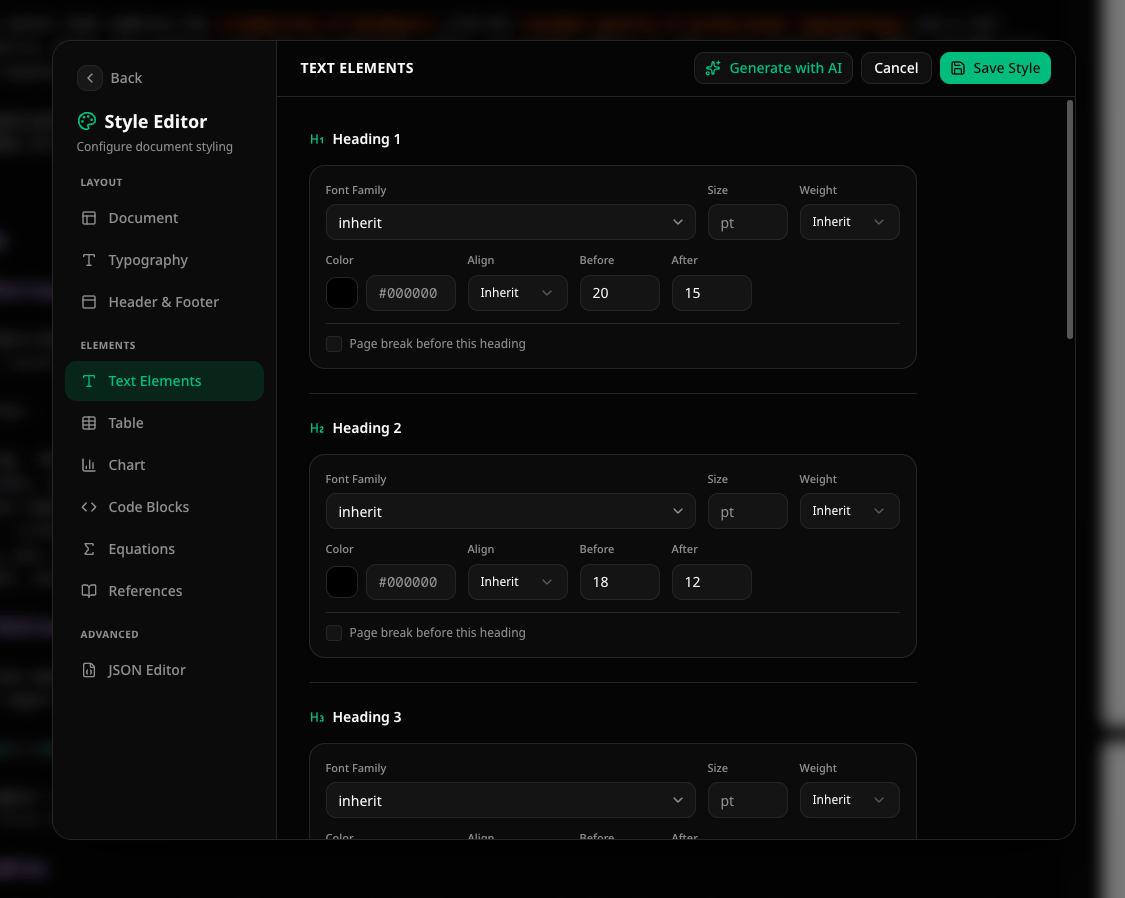 Per element:
| Setting | Description |
| ------------------------ | ---------------------------------------------------- |
| **Font Family** | Override or inherit from defaults |
| **Size** | Font size in points |
| **Weight** | Normal, Bold, or Inherit |
| **Color** | Text color |
| **Align** | Left, Center, Right, Justify, or Inherit |
| **Line Spacing** | Line spacing multiplier, e.g. 1.5 (body text only) |
| **Space Before / After** | Spacing in points |
| **Page Break Before** | Start a new page before this heading (headings only) |
**Text** is the default body style. **Text 2** is a secondary paragraph style activated by the `| text` prefix in Markdown. Both support the same properties but can be configured independently — useful for distinguishing regular paragraphs from supplementary text like annotations or side notes.
***
### Tables
Control the visual appearance of tables in your document.
Per element:
| Setting | Description |
| ------------------------ | ---------------------------------------------------- |
| **Font Family** | Override or inherit from defaults |
| **Size** | Font size in points |
| **Weight** | Normal, Bold, or Inherit |
| **Color** | Text color |
| **Align** | Left, Center, Right, Justify, or Inherit |
| **Line Spacing** | Line spacing multiplier, e.g. 1.5 (body text only) |
| **Space Before / After** | Spacing in points |
| **Page Break Before** | Start a new page before this heading (headings only) |
**Text** is the default body style. **Text 2** is a secondary paragraph style activated by the `| text` prefix in Markdown. Both support the same properties but can be configured independently — useful for distinguishing regular paragraphs from supplementary text like annotations or side notes.
***
### Tables
Control the visual appearance of tables in your document.
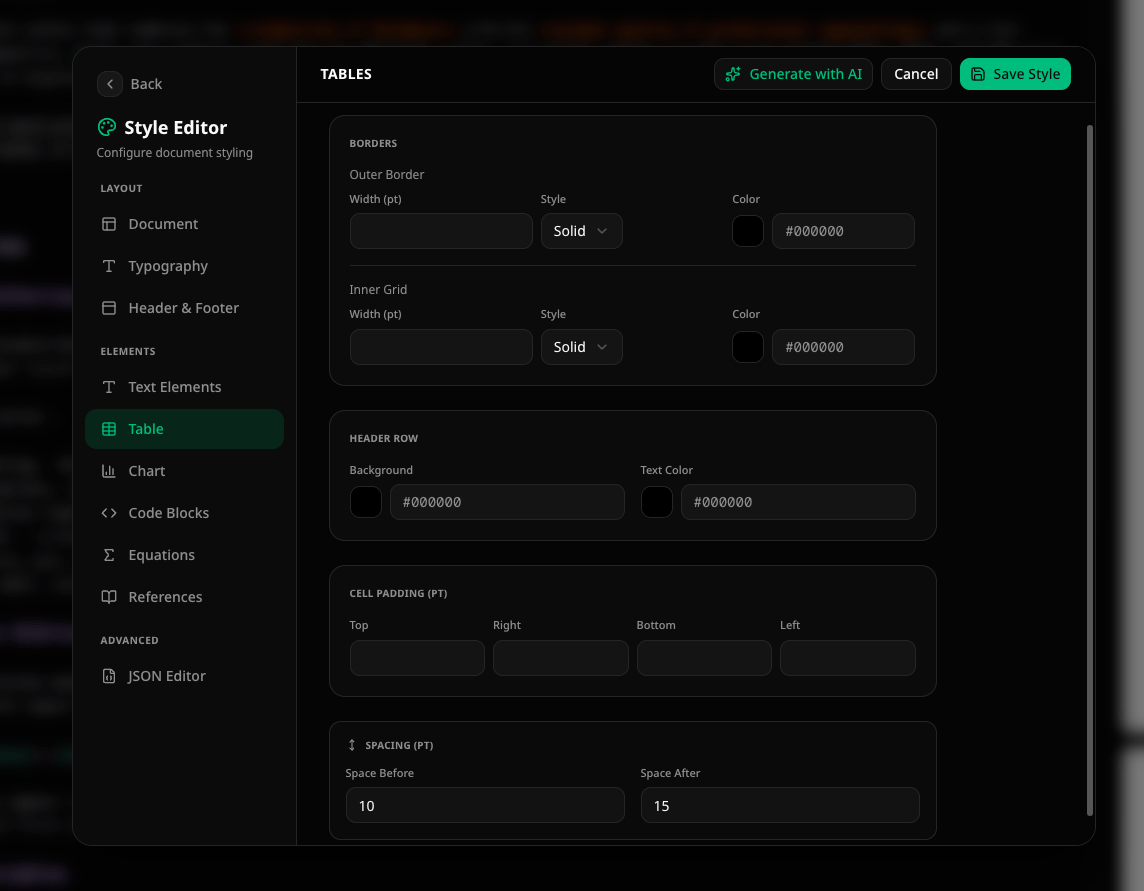 **Borders:**
| Setting | Options |
| ---------------- | ---------------------------------------------- |
| **Outer Border** | Width (pt), Style (Solid/Dashed/Dotted), Color |
| **Inner Grid** | Width (pt), Style (Solid/Dashed/Dotted), Color |
**Header Row** — background color and text color for the first row.
**Cell Padding** — top, right, bottom, left padding in points.
**Spacing** — space before and after the table element.
***
### Charts
Configure the color palette used for chart series.
**Borders:**
| Setting | Options |
| ---------------- | ---------------------------------------------- |
| **Outer Border** | Width (pt), Style (Solid/Dashed/Dotted), Color |
| **Inner Grid** | Width (pt), Style (Solid/Dashed/Dotted), Color |
**Header Row** — background color and text color for the first row.
**Cell Padding** — top, right, bottom, left padding in points.
**Spacing** — space before and after the table element.
***
### Charts
Configure the color palette used for chart series.
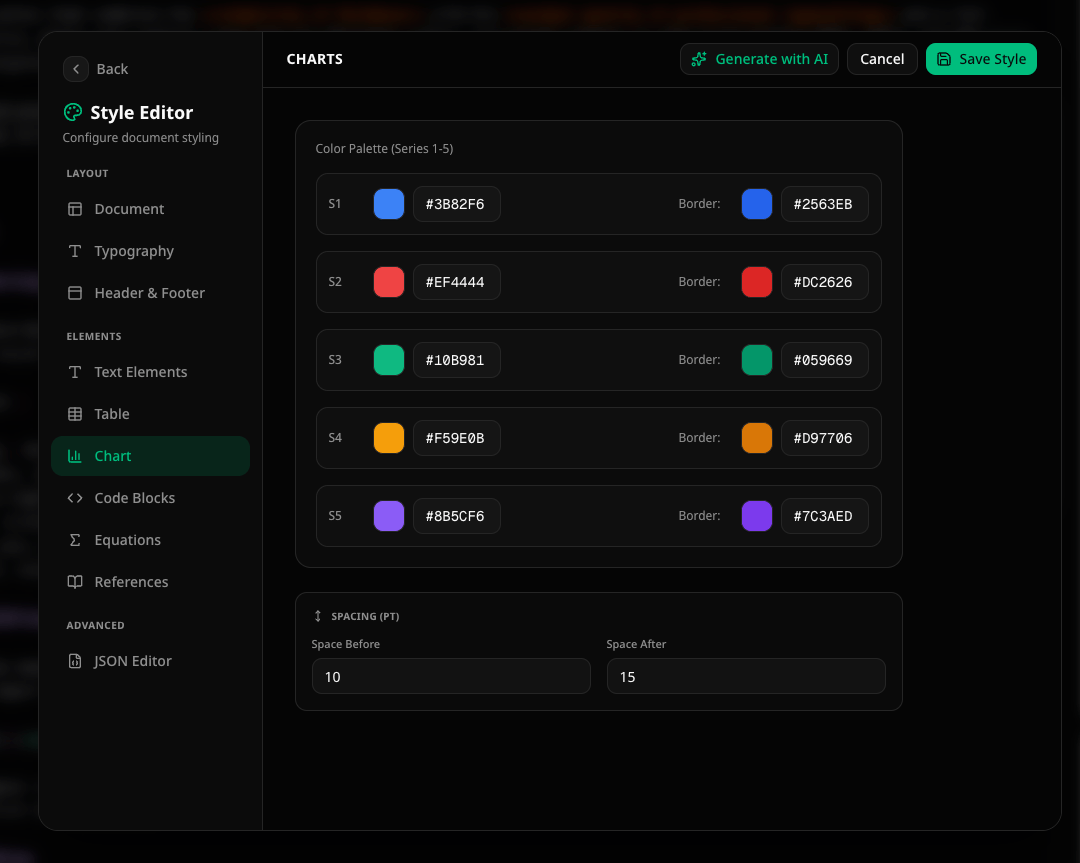 Define up to 5 series colors, each with a **fill color** and a **border color**. These colors are applied to bar charts, line charts, pie charts, and other chart types.
***
### Code Blocks
Define up to 5 series colors, each with a **fill color** and a **border color**. These colors are applied to bar charts, line charts, pie charts, and other chart types.
***
### Code Blocks
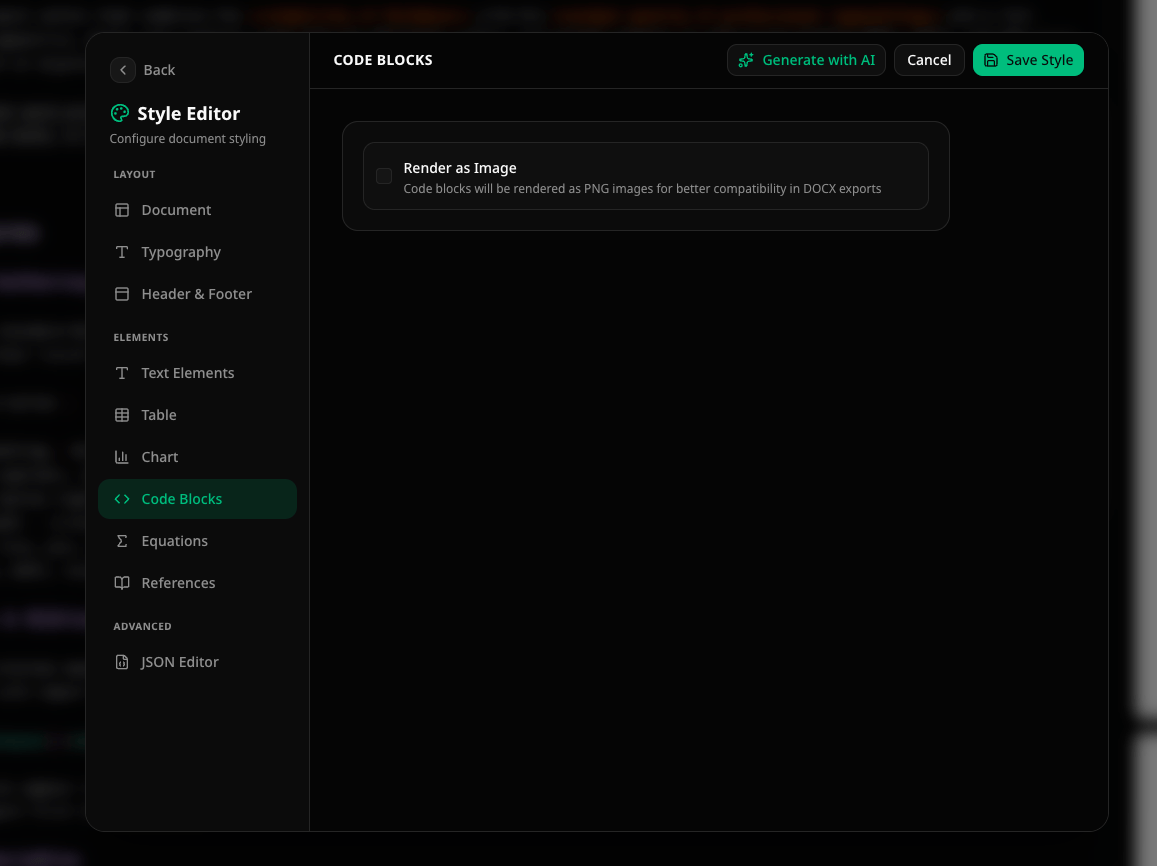 | Setting | Description |
| ------------------- | ---------------------------------------------------------------------------------------------------------------------------------------------------------- |
| **Render as Image** | When enabled, code blocks are rendered as PNG images. This improves compatibility in DOCX exports where syntax highlighting may not be preserved natively. |
***
### Equations
| Setting | Description |
| ------------------- | ---------------------------------------------------------------------------------------------------------------------------------------------------------- |
| **Render as Image** | When enabled, code blocks are rendered as PNG images. This improves compatibility in DOCX exports where syntax highlighting may not be preserved natively. |
***
### Equations
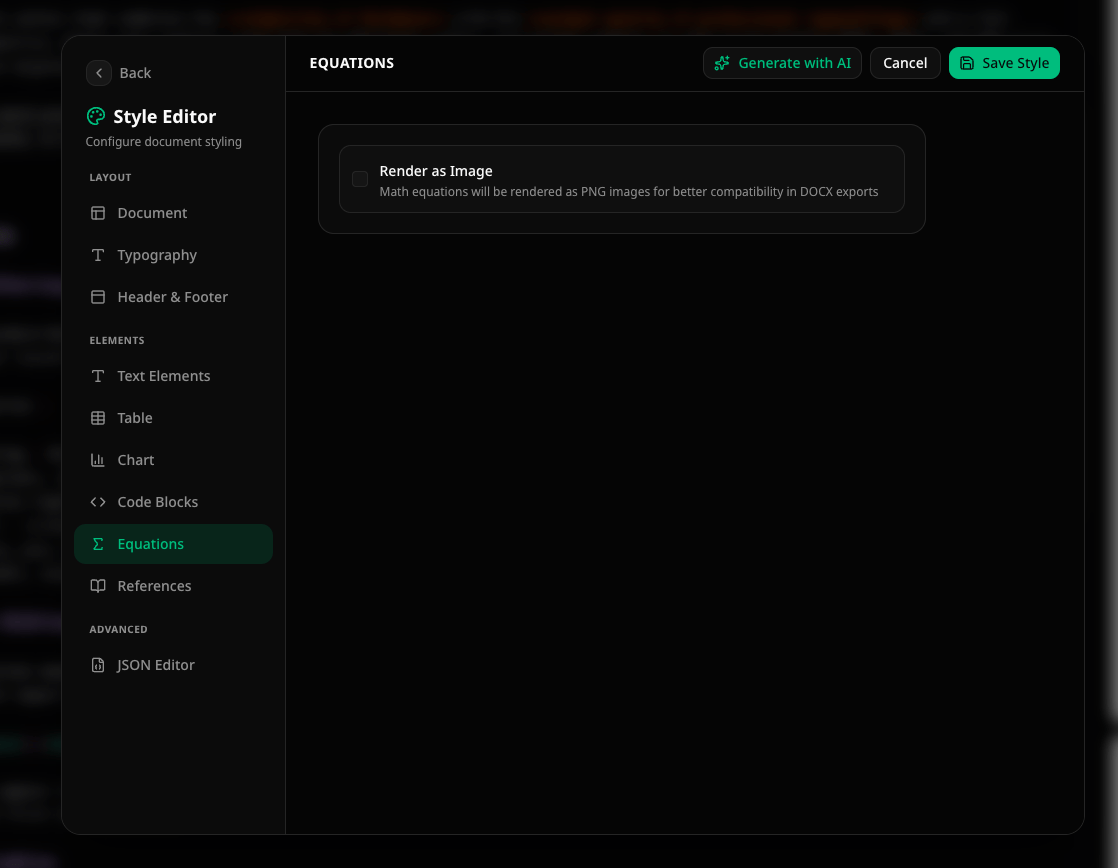 | Setting | Description |
| ------------------- | --------------------------------------------------------------------------------------------------------------------------------------------------------- |
| **Render as Image** | When enabled, math equations are rendered as PNG images. This improves compatibility in DOCX exports where LaTeX rendering may not be supported natively. |
***
### References & Citations
Configure the styling for reference links, the List of Abbreviations, and the bibliography.
| Setting | Description |
| ------------------- | --------------------------------------------------------------------------------------------------------------------------------------------------------- |
| **Render as Image** | When enabled, math equations are rendered as PNG images. This improves compatibility in DOCX exports where LaTeX rendering may not be supported natively. |
***
### References & Citations
Configure the styling for reference links, the List of Abbreviations, and the bibliography.
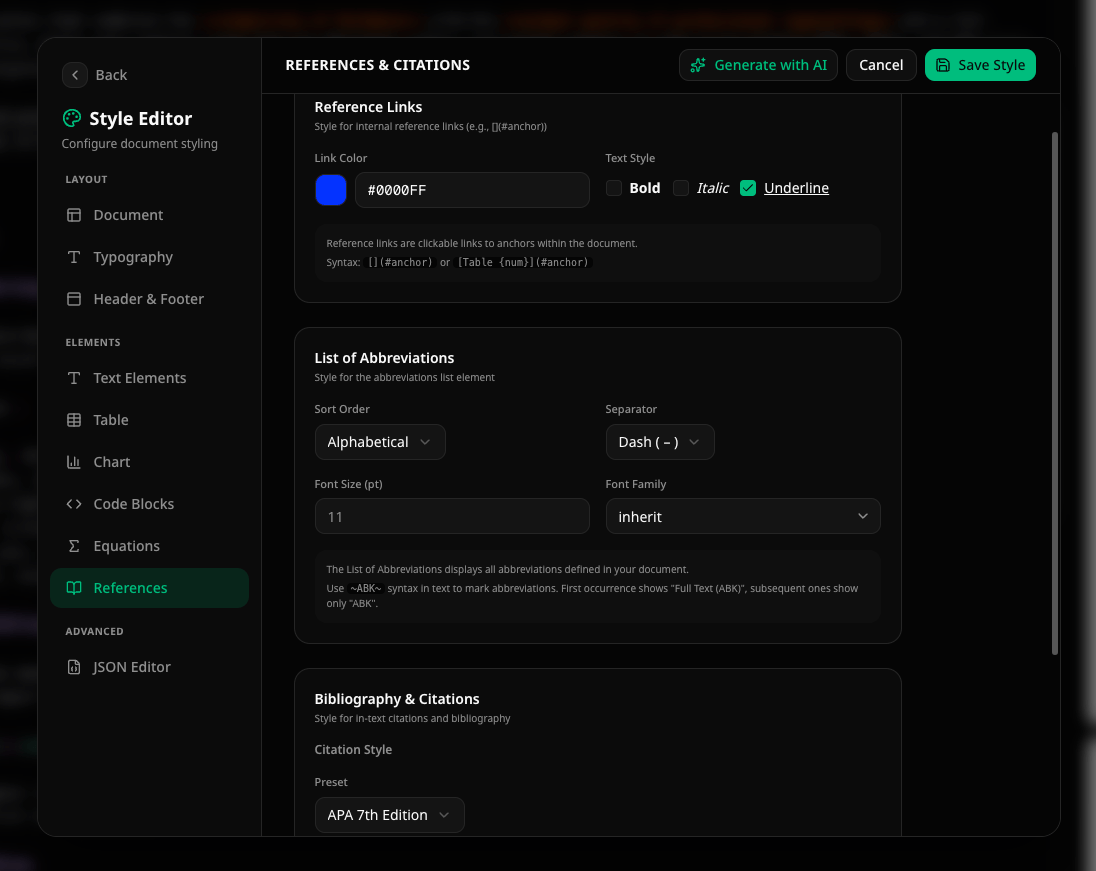 **Reference Links** — style for internal cross-reference links (e.g., `[](#anchor)`):
| Setting | Options |
| -------------- | --------------------------------- |
| **Link Color** | Color picker |
| **Text Style** | Bold, Italic, Underline (toggles) |
**List of Abbreviations:**
| Setting | Options |
| --------------- | -------------------------------- |
| **Sort Order** | Alphabetical or Document Order |
| **Separator** | Dash, Hyphen, Colon, Equals, Tab |
| **Font Size** | Size in points |
| **Font Family** | Override or inherit |
**Bibliography & Citations:**
| Setting | Options |
| ------------------ | --------------------------------------------- |
| **Citation Style** | APA 7, Harvard, IEEE, Chicago, MLA, Vancouver |
| **Font Family** | Override or inherit |
| **Font Size** | Size in points |
| **Entry Spacing** | Space between entries in points |
| **Hanging Indent** | Indent for continuation lines in cm |
***
### JSON Editor
For advanced users, the JSON Editor provides direct access to the raw configuration object. Changes are applied live as you type.
**Reference Links** — style for internal cross-reference links (e.g., `[](#anchor)`):
| Setting | Options |
| -------------- | --------------------------------- |
| **Link Color** | Color picker |
| **Text Style** | Bold, Italic, Underline (toggles) |
**List of Abbreviations:**
| Setting | Options |
| --------------- | -------------------------------- |
| **Sort Order** | Alphabetical or Document Order |
| **Separator** | Dash, Hyphen, Colon, Equals, Tab |
| **Font Size** | Size in points |
| **Font Family** | Override or inherit |
**Bibliography & Citations:**
| Setting | Options |
| ------------------ | --------------------------------------------- |
| **Citation Style** | APA 7, Harvard, IEEE, Chicago, MLA, Vancouver |
| **Font Family** | Override or inherit |
| **Font Size** | Size in points |
| **Entry Spacing** | Space between entries in points |
| **Hanging Indent** | Indent for continuation lines in cm |
***
### JSON Editor
For advanced users, the JSON Editor provides direct access to the raw configuration object. Changes are applied live as you type.
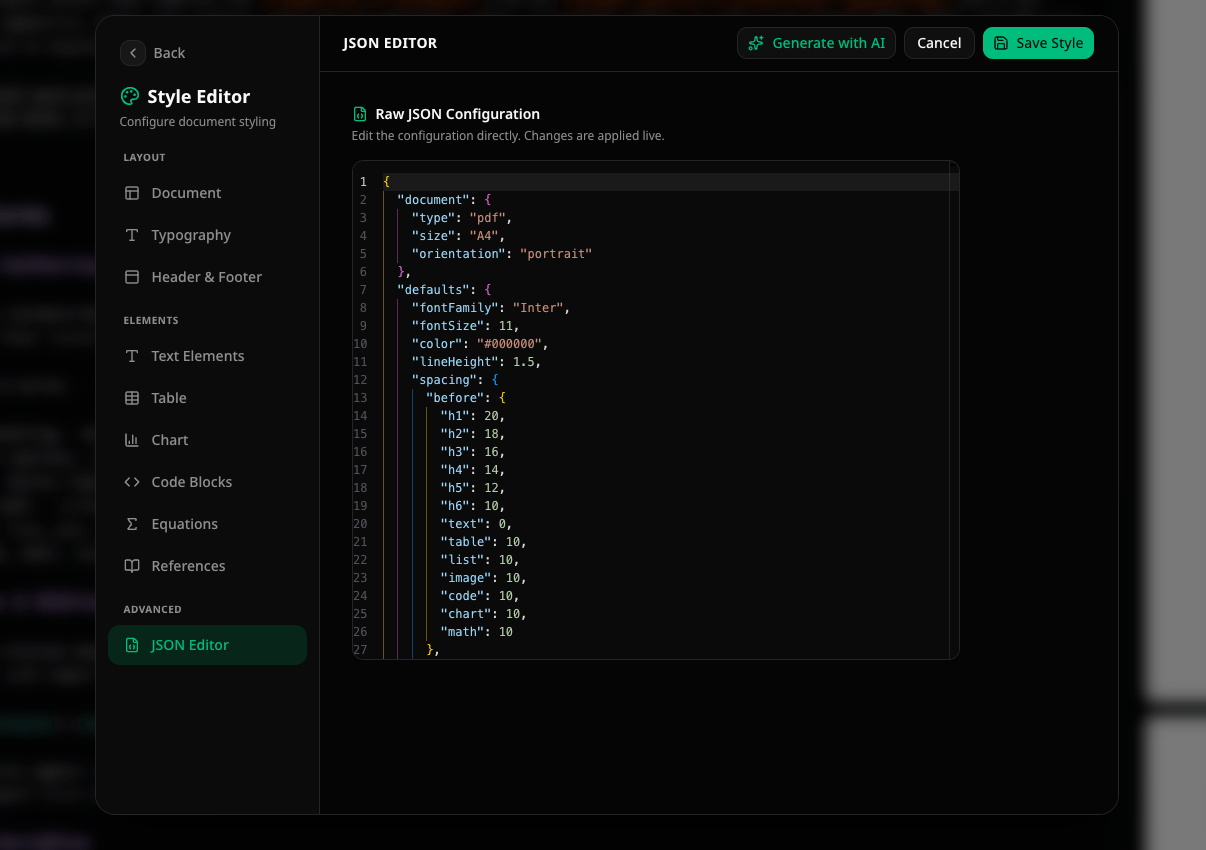 The editor uses Monaco (the same engine as VS Code) with syntax highlighting, folding, and validation. This is useful for fine-tuning values that are not exposed in the visual UI or for copying configurations between documents.