> ## Documentation Index
> Fetch the complete documentation index at: https://docs.autype.com/llms.txt
> Use this file to discover all available pages before exploring further.
# Workspace
> Your central hub — create documents with AI, manage projects, switch organizations, and navigate your documents.
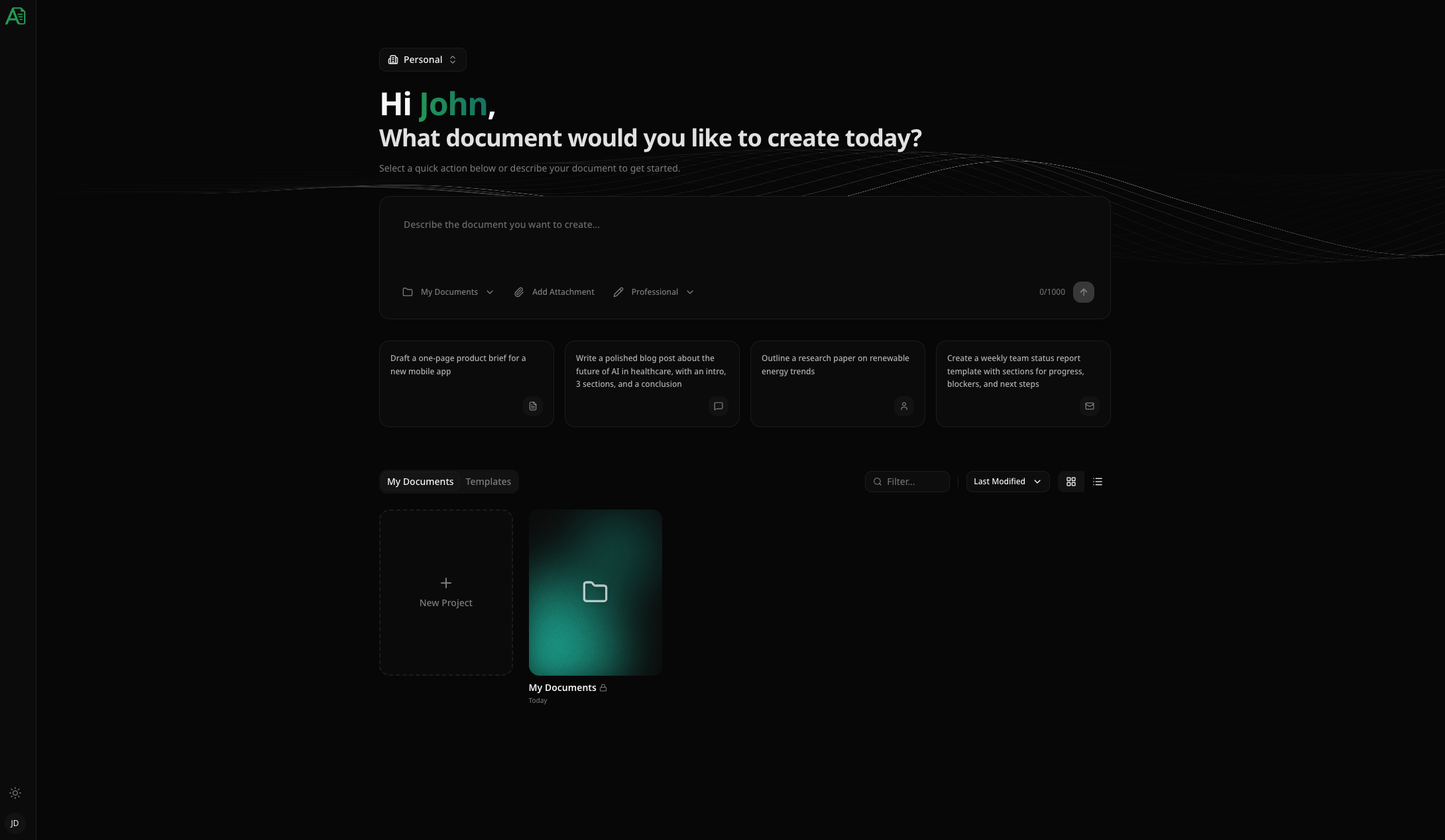
The workspace is the first screen you see after signing in. It combines AI-powered document creation with project and document management.
 ***
## AI document generation
At the top of the workspace, you'll find the **AI input field** — describe the document you want to create and Autype generates it for you.
***
## AI document generation
At the top of the workspace, you'll find the **AI input field** — describe the document you want to create and Autype generates it for you.
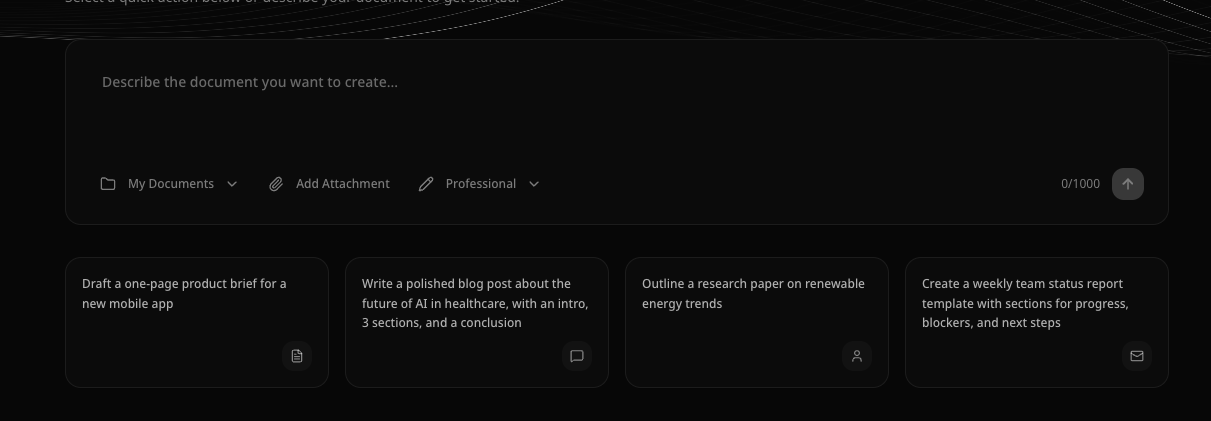 ### How to generate a document
1. **Select a project** — choose the target project from the folder dropdown (bottom-left of the input)
2. **Describe your document** — type a prompt like *"Create a business proposal with executive summary, problem statement, solution, and pricing"*
3. **Choose a writing style** — select from Professional, Academic, Casual, or Technical
4. **(Optional) Attach files** — attach up to 3 files (PDF, DOCX, images, CSV, etc. — max 20 MB each) as reference material
5. **Click the send button** — Autype generates the document and opens it in the editor
Document generation consumes credits. See [Pricing](/getting-started/pricing) for credit costs.
### Quick prompts
Below the input field, four **prompt cards** offer ready-made starting points:
* **Business Proposal** — executive summary, problem statement, solution, pricing
* **Technical Documentation** — API overview, authentication, endpoints, examples
* **Project Report** — introduction, methodology, findings, conclusion
* **Project Plan** — timeline, milestones, risks, resources
Click any card to fill the input with the prompt text, then customize it before generating.
### Writing styles
| Style | Description |
| ---------------- | ----------------------------------- |
| **Professional** | Formal, business-appropriate tone |
| **Academic** | Scholarly, research-oriented style |
| **Casual** | Friendly, conversational tone |
| **Technical** | Precise, detailed technical writing |
***
## Organization switcher
If you belong to multiple organizations, use the **organization switcher** at the top of the workspace to switch between them.
### How to generate a document
1. **Select a project** — choose the target project from the folder dropdown (bottom-left of the input)
2. **Describe your document** — type a prompt like *"Create a business proposal with executive summary, problem statement, solution, and pricing"*
3. **Choose a writing style** — select from Professional, Academic, Casual, or Technical
4. **(Optional) Attach files** — attach up to 3 files (PDF, DOCX, images, CSV, etc. — max 20 MB each) as reference material
5. **Click the send button** — Autype generates the document and opens it in the editor
Document generation consumes credits. See [Pricing](/getting-started/pricing) for credit costs.
### Quick prompts
Below the input field, four **prompt cards** offer ready-made starting points:
* **Business Proposal** — executive summary, problem statement, solution, pricing
* **Technical Documentation** — API overview, authentication, endpoints, examples
* **Project Report** — introduction, methodology, findings, conclusion
* **Project Plan** — timeline, milestones, risks, resources
Click any card to fill the input with the prompt text, then customize it before generating.
### Writing styles
| Style | Description |
| ---------------- | ----------------------------------- |
| **Professional** | Formal, business-appropriate tone |
| **Academic** | Scholarly, research-oriented style |
| **Casual** | Friendly, conversational tone |
| **Technical** | Precise, detailed technical writing |
***
## Organization switcher
If you belong to multiple organizations, use the **organization switcher** at the top of the workspace to switch between them.
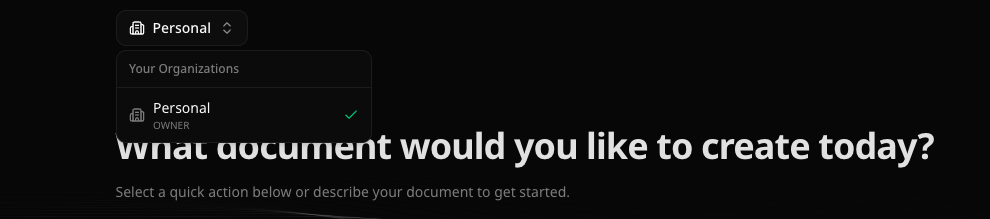 Each organization has its own projects, documents, settings, and subscription. Your role (Owner, Admin, Member) is displayed next to each organization name.
***
## Projects & documents
Autype organizes content in a two-level hierarchy: **Projects** contain **Documents**.
### Projects view
When no project is selected, the workspace shows all your projects as cards.
Each organization has its own projects, documents, settings, and subscription. Your role (Owner, Admin, Member) is displayed next to each organization name.
***
## Projects & documents
Autype organizes content in a two-level hierarchy: **Projects** contain **Documents**.
### Projects view
When no project is selected, the workspace shows all your projects as cards.
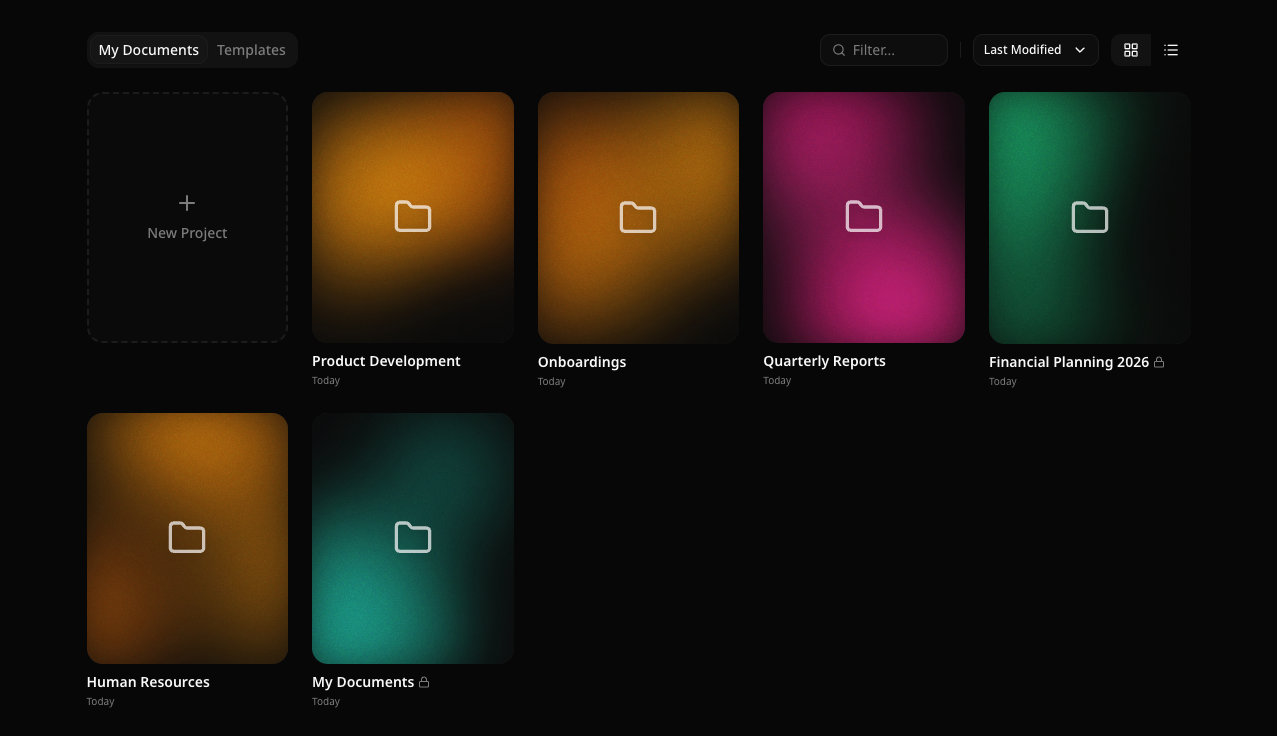 Each project card shows:
* **Project name**
* **Last modified** date
* **Lock icon** for private projects
### Creating a project
Click the **"+ New Project"** card to create a new project.
Each project card shows:
* **Project name**
* **Last modified** date
* **Lock icon** for private projects
### Creating a project
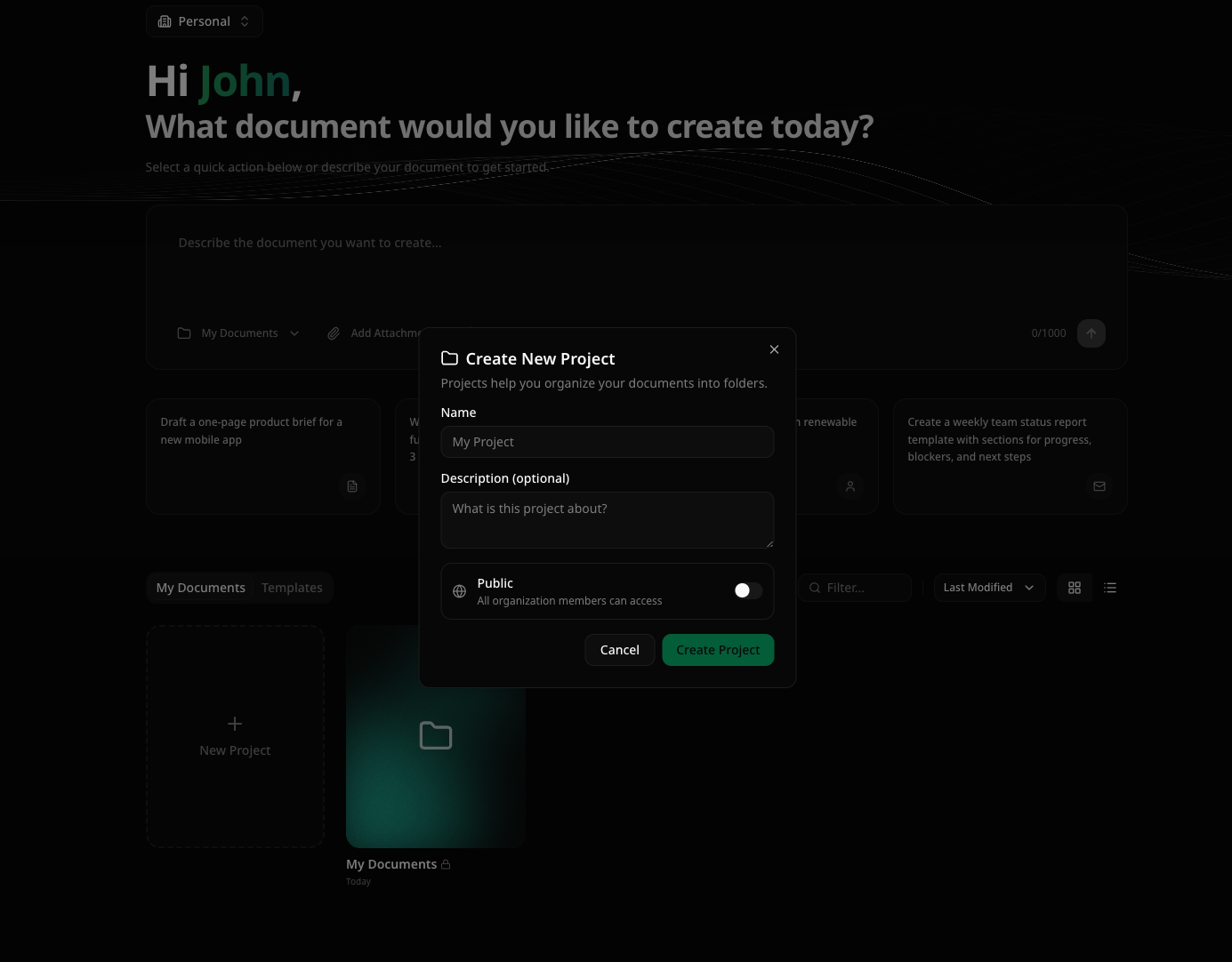
Click the **"+ New Project"** card to create a new project.
 | Option | Description |
| --------------- | ------------------------------------------------------------- |
| **Name** | Project name (required) |
| **Description** | Optional description |
| **Visibility** | `Public` (visible to all org members) or `Private` (only you) |
### Project actions
Hover over a project card and click the **⋯** menu to:
* **Rename** the project
* **Delete** the project (and all its documents)
### Documents view
Click a project to see its documents. A **"← Back to Projects"** button appears at the top.
| Option | Description |
| --------------- | ------------------------------------------------------------- |
| **Name** | Project name (required) |
| **Description** | Optional description |
| **Visibility** | `Public` (visible to all org members) or `Private` (only you) |
### Project actions
Hover over a project card and click the **⋯** menu to:
* **Rename** the project
* **Delete** the project (and all its documents)
### Documents view
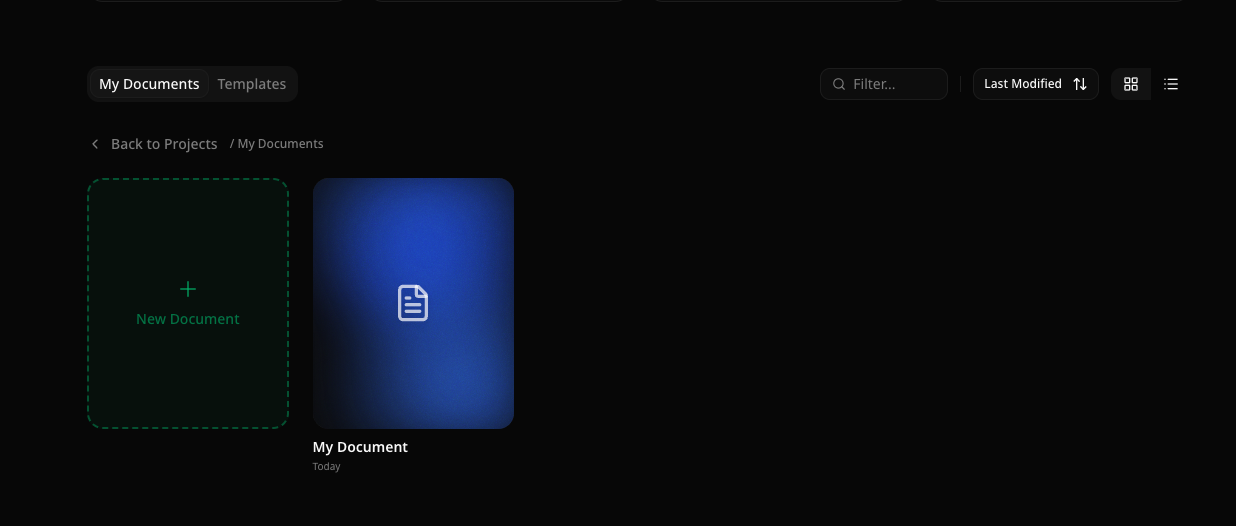
Click a project to see its documents. A **"← Back to Projects"** button appears at the top.
 ### Creating a document
Inside a project, click **"+ New Document"** to create a blank document.
### Creating a document
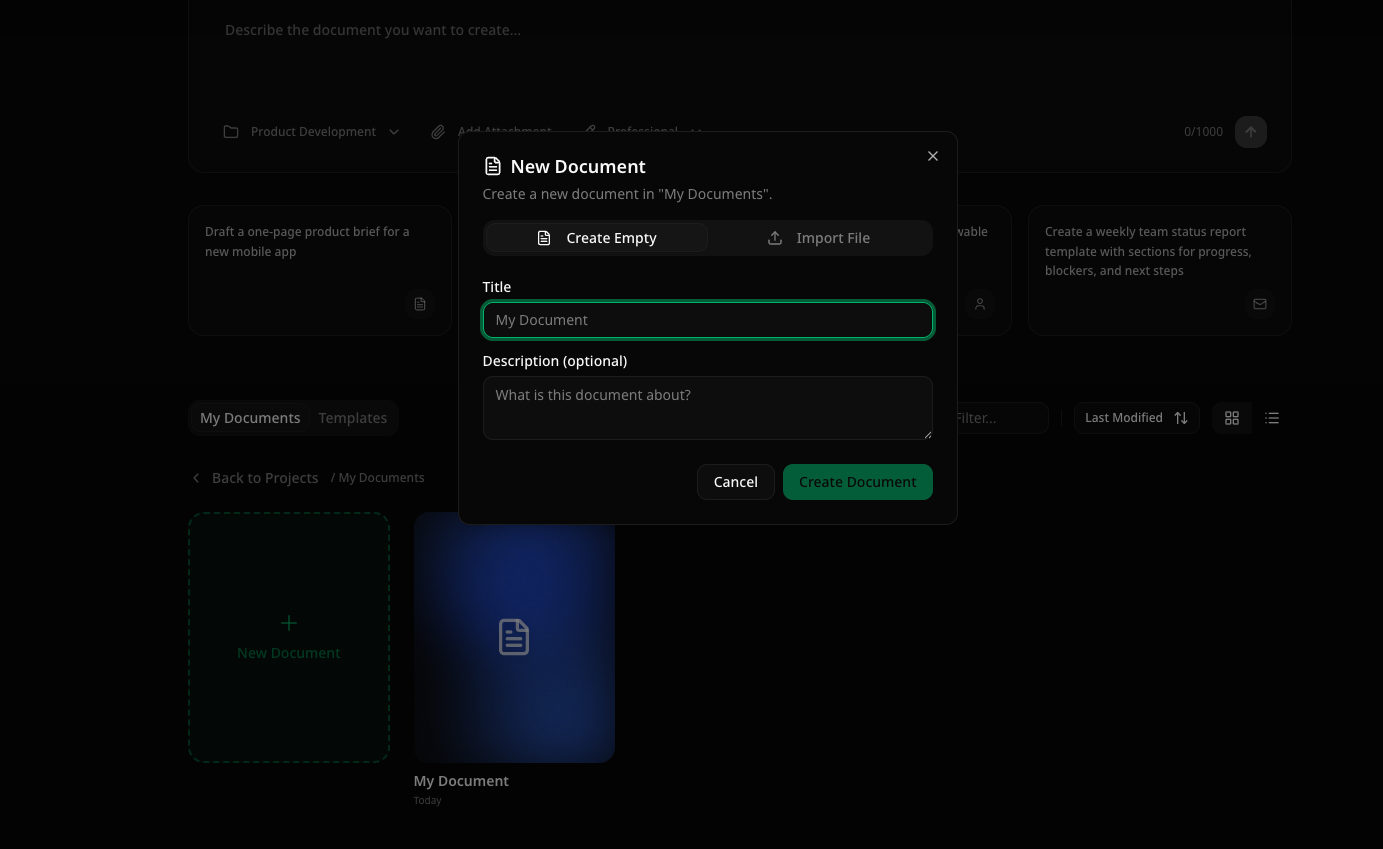
Inside a project, click **"+ New Document"** to create a blank document.
 You can also:
* **Import** an existing `.aud` file (Autype's native format)
* **Import** a PDF, DOCX, or ODT file (experimental conversion)
### Document actions
Hover over a document card and click the **⋯** menu to:
* **Rename** the document
* **Duplicate** the document
* **Download** the `.aud` file
* **Delete** the document
***
## Tabs: Documents & Templates
The workspace has two tabs:
| Tab | Content |
| ---------------- | --------------------------- |
| **My Documents** | Your projects and documents |
| **Templates** | Reusable document templates |
### Templates
Templates are pre-built documents you can use as starting points. Click **"Use Template"** to create a new document from a template in a project of your choice.
***
## Search, sort & view modes
### Search / filter
Use the **search field** in the controls bar to filter projects or documents by name. When inside a project, search is server-side with debounced input.
### Sort
Click the **sort dropdown** to order items by:
* **Last Modified** (default)
* **Name**
* **Date Created**
Click the same sort option again to toggle between ascending and descending order.
### View modes
Toggle between two view modes using the icons in the controls bar:
| Mode | Description |
| -------- | ------------------------------------------------------------ |
| **Grid** | Card-based layout with visual previews (default) |
| **List** | Compact table layout with columns for name, date, and author |
You can also:
* **Import** an existing `.aud` file (Autype's native format)
* **Import** a PDF, DOCX, or ODT file (experimental conversion)
### Document actions
Hover over a document card and click the **⋯** menu to:
* **Rename** the document
* **Duplicate** the document
* **Download** the `.aud` file
* **Delete** the document
***
## Tabs: Documents & Templates
The workspace has two tabs:
| Tab | Content |
| ---------------- | --------------------------- |
| **My Documents** | Your projects and documents |
| **Templates** | Reusable document templates |
### Templates
Templates are pre-built documents you can use as starting points. Click **"Use Template"** to create a new document from a template in a project of your choice.
***
## Search, sort & view modes
### Search / filter
Use the **search field** in the controls bar to filter projects or documents by name. When inside a project, search is server-side with debounced input.
### Sort
Click the **sort dropdown** to order items by:
* **Last Modified** (default)
* **Name**
* **Date Created**
Click the same sort option again to toggle between ascending and descending order.
### View modes
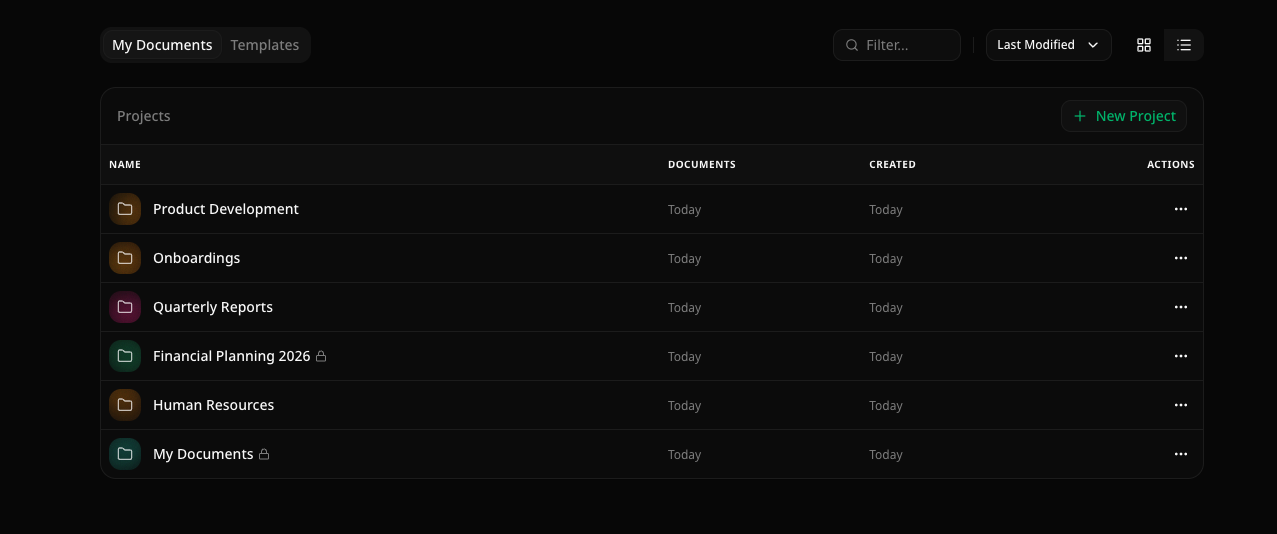
Toggle between two view modes using the icons in the controls bar:
| Mode | Description |
| -------- | ------------------------------------------------------------ |
| **Grid** | Card-based layout with visual previews (default) |
| **List** | Compact table layout with columns for name, date, and author |
 ***
## Sidebar & navigation
The workspace sidebar (visible on desktop) provides quick access to:
* **Workspace** — return to the main workspace
* **Settings** — open the settings modal
* **Theme toggle** — switch between light and dark mode
* **User menu** — profile, sign out
***
## Sidebar & navigation
The workspace sidebar (visible on desktop) provides quick access to:
* **Workspace** — return to the main workspace
* **Settings** — open the settings modal
* **Theme toggle** — switch between light and dark mode
* **User menu** — profile, sign out