
Overview
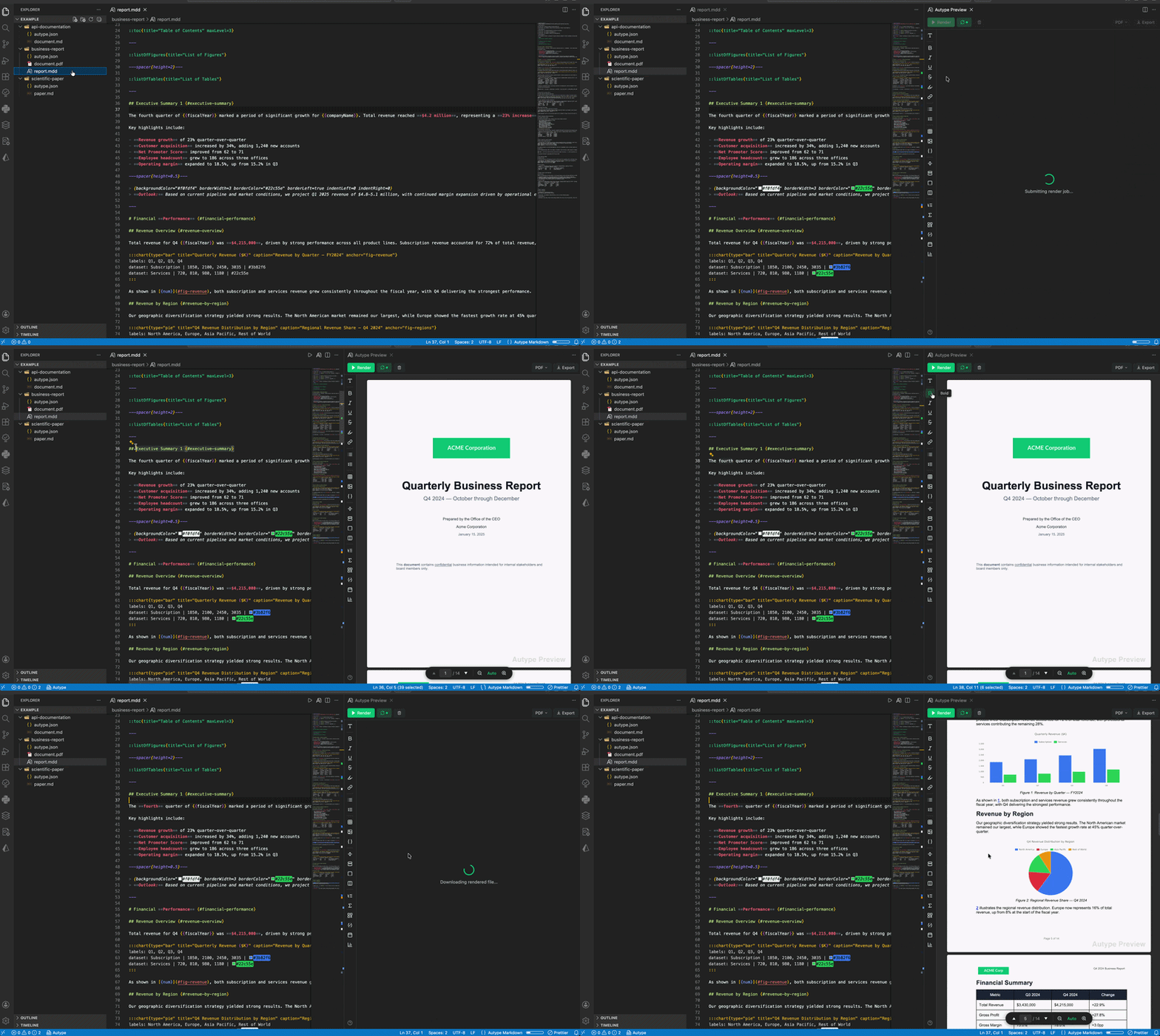
The Autype VS Code Extension lets you write reports, papers, invoices, API docs, and any other document using an extended Markdown syntax. Render a live PDF preview side-by-side with your editor, then export to PDF, DOCX, or ODT with a single click. The extension uses the Autype Developer API. Pro and Team include automation credits; Engine and Editor can unlock API access with a permanent credit top-up.Product demo
What You Can Build
Autype goes far beyond plain Markdown. Write professional documents with:- Charts — bar, line, pie, doughnut, radar, scatter, bubble, polar area
- Math equations — LaTeX syntax rendered as images (
$$E = mc^2$$) - Styled tables — captions, colored headers, alternating rows, images in cells
- Code blocks — syntax-highlighted, optionally rendered as images
- Table of Contents — auto-generated from headings with page numbers
- List of Figures / Tables — auto-numbered figure and table indices
- QR codes — URL, WiFi, vCard
- Page layouts — page breaks, orientation changes, spacers, cover pages
- Multi-column layouts — two- or three-column sections (like academic papers)
- Variables — dynamic placeholders like
{{companyName}}or{{date/DD.MM.YYYY}} - Cross-references — link to headings, figures, and tables by anchor
- Headers & footers — with page numbers, logos, and dynamic content
- Images — local images auto-uploaded with hash-based caching
Getting Started
1
Install & Sign Up
Install the extension from the VS Code Marketplace. Create an account at app.autype.com, activate Developer API access through Pro, Team, or a permanent credit top-up, and copy your API key (starts with
ak_).2
Set Your API Key
Run Autype: Set API Key from the command palette (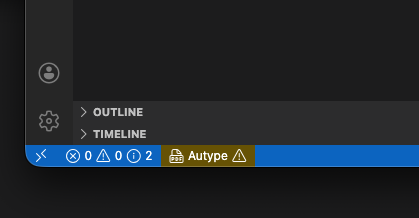
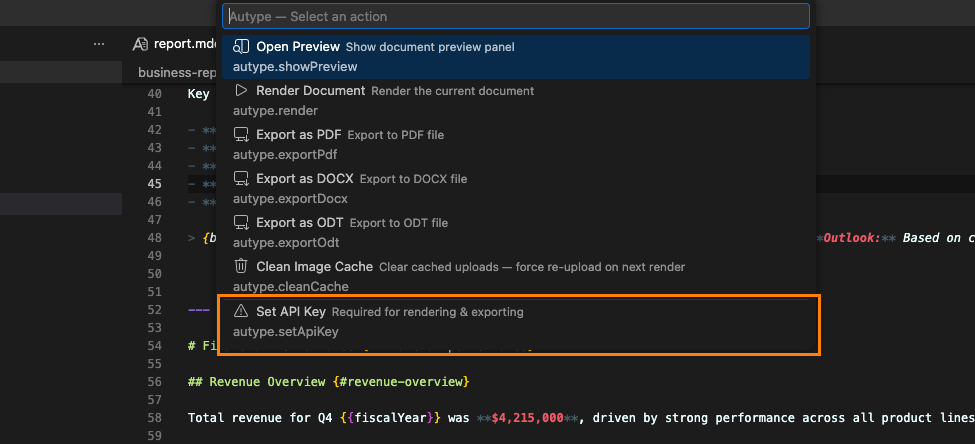
Ctrl+Shift+P / Cmd+Shift+P), or click the Autype button in the VS Code status bar and select Set API Key. The key is stored securely in VS Code’s secret storage.3
Create a Project
Create a folder with an Or right-click any folder in the Explorer and select Autype: Create New Document to scaffold a project automatically.
autype.json config file and a .md content file:4
Configure autype.json
5
Open the Preview & Export
Open any 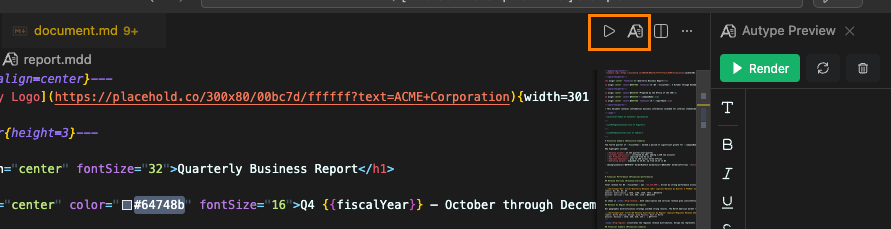 Click Render to generate the PDF, then Ctrl+Scroll (Cmd+Scroll on macOS) to zoom. Choose a format from the dropdown and click Export.
.md file in the project folder, then click the Autype icon in the editor title bar (or run Autype: Show Preview).Click Render to generate the PDF, then Ctrl+Scroll (Cmd+Scroll on macOS) to zoom. Choose a format from the dropdown and click Export.Features
Live PDF Preview
Render your document and view the result side-by-side with the editor. The preview uses PDF.js for fast, native rendering with text selection and zoom.Insert Toolbar
A vertical toolbar next to the preview gives you one-click access to all formatting options — headings, bold, italic, underline, strikethrough, highlight, links, images, tables, code blocks, math, charts, QR codes, variables, page breaks, columns, TOC, and more.Auto-Rerender
Enable auto-rerender to automatically re-render the preview whenever you edit the Markdown orautype.json. 10-second cooldown between renders.
Syntax Highlighting
The extension registers a dedicatedautype-markdown language for .mdd files with a custom TextMate grammar that highlights Autype-specific syntax like variables ({{name}}), page breaks, directives, and more.
Image Caching
Local images are uploaded to the Autype API with SHA-256 hash-based deduplication. Unchanged images are not re-uploaded, making repeated renders fast.Commands
Settings
Plans & Pricing
VS Code rendering and exports use automation credits. Pro and Team include monthly credits; a permanent top-up enables the same workflow on Engine and Editor. Purchased credits never expire.
See Pricing for credit details.
Example Projects
The extension ships with three example projects in theexample/ folder:
business-report/— A quarterly business report with TOC, list of figures, charts, styled tables, and imagesapi-documentation/— REST API documentation with code blocks, endpoint tables, and request/response examplesscientific-paper/— A two-column academic paper with equations, citations, bibliography, and figures