
Profile
Manage your personal account information.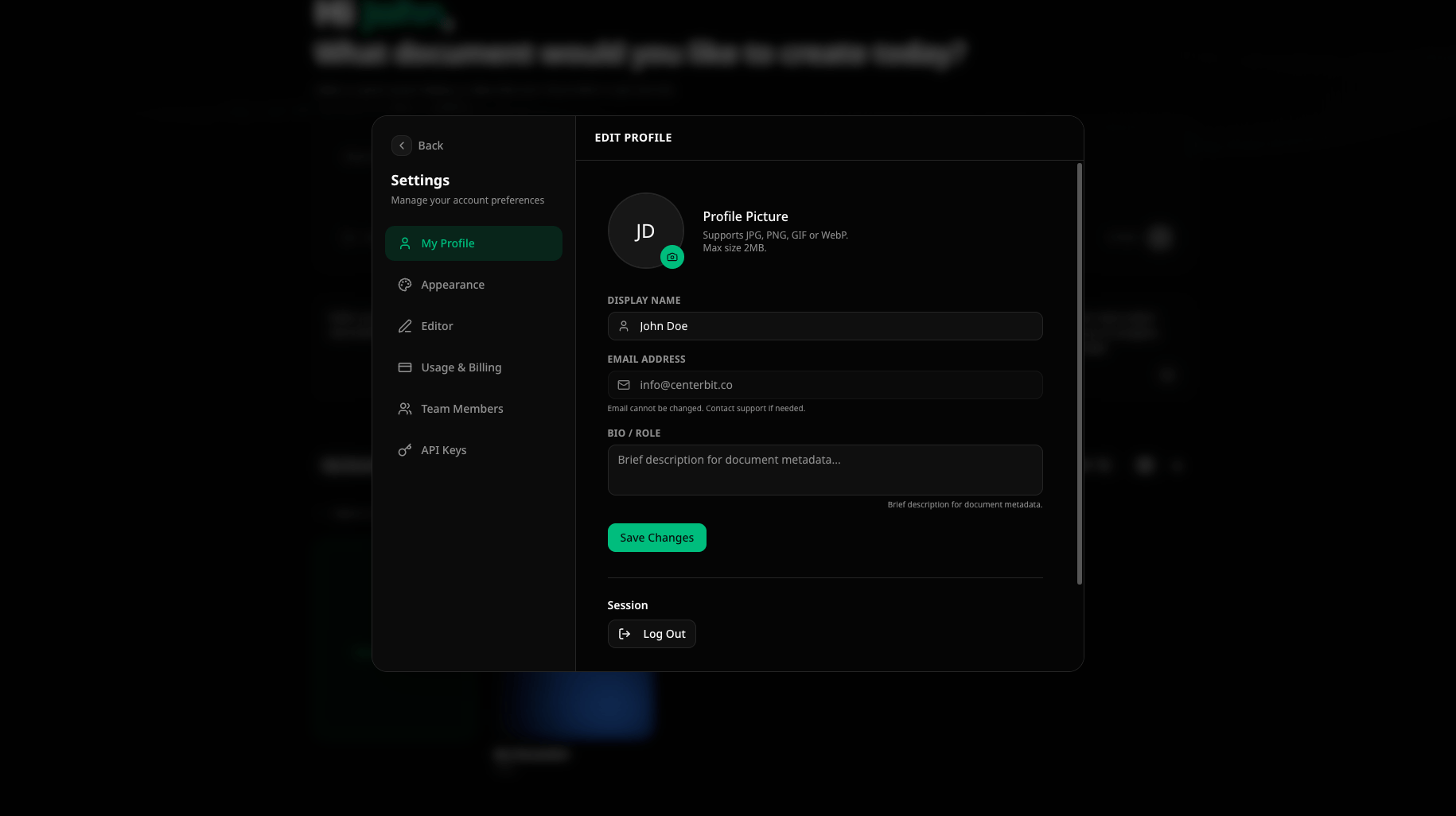
At the bottom of the profile tab:
- Log Out — end your current session
- Request Account Deletion — permanently delete your account and all data (sends an email to support)
Appearance
Choose the visual theme for the Autype interface.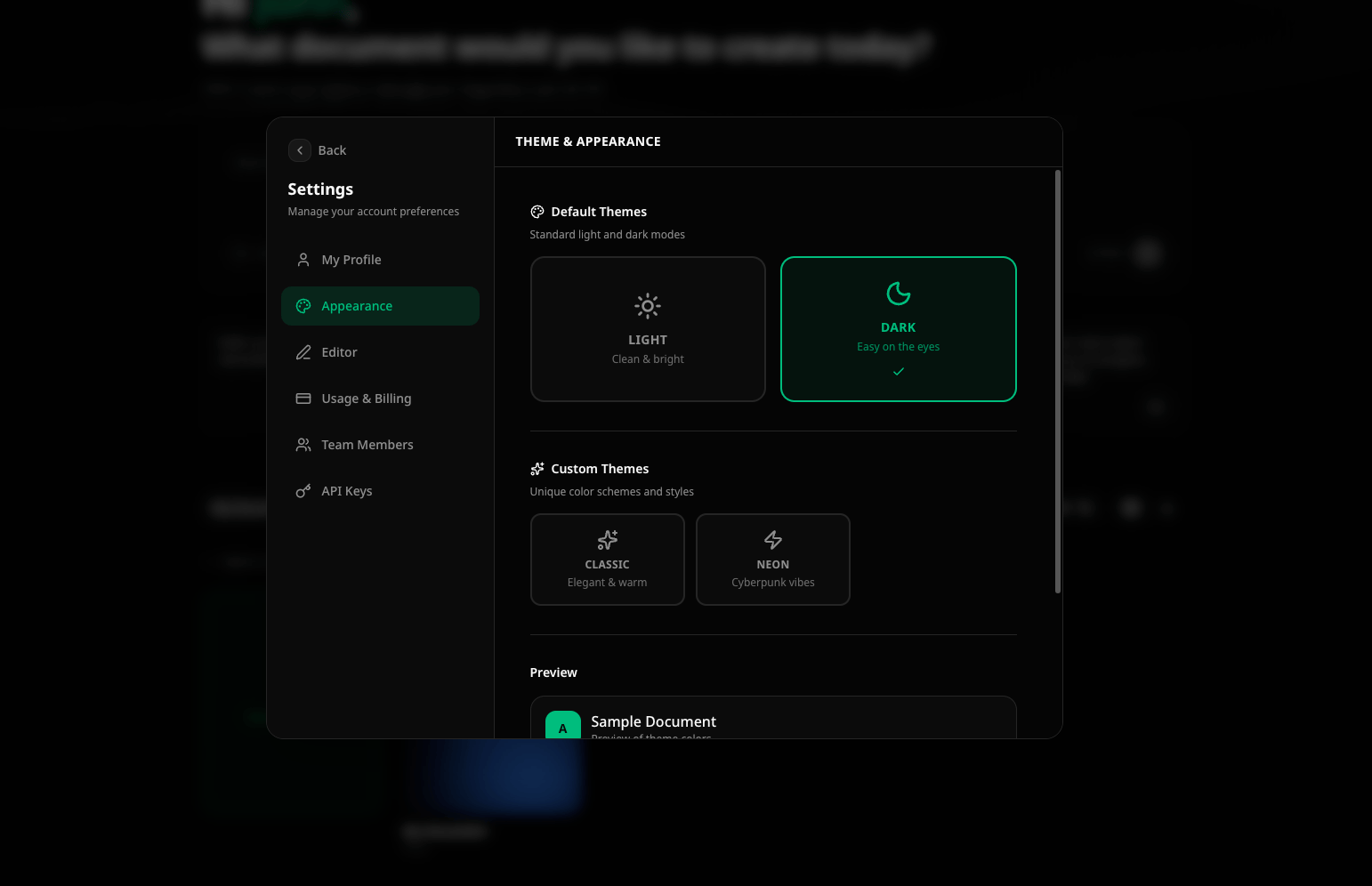
Default themes
Custom themes
A live preview card at the bottom shows how buttons and text look in the selected theme.
The theme setting applies to the Autype interface only. It does not affect the styling of your exported documents.
Editor
Configure editor-specific behavior and defaults.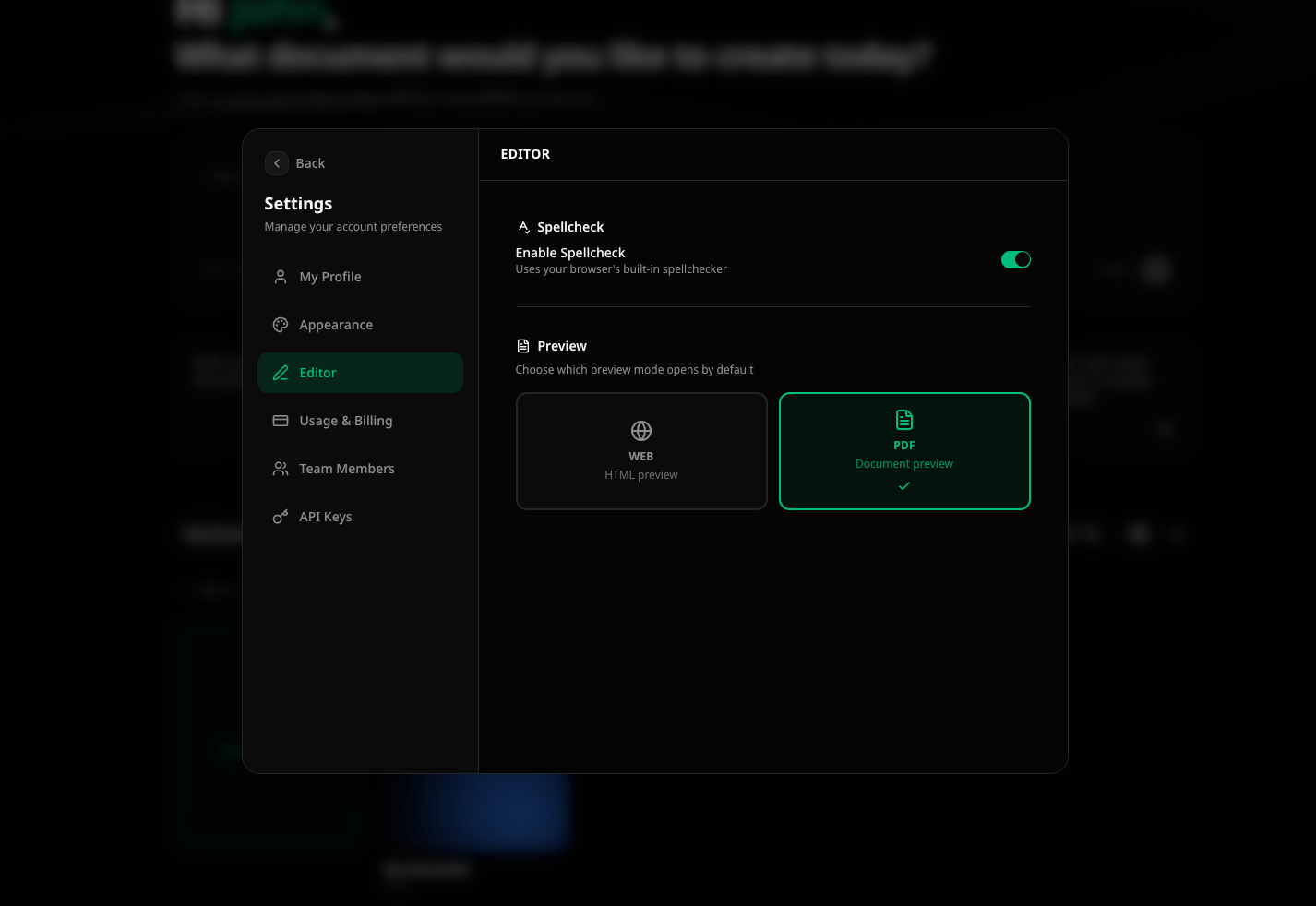
Spellcheck
Enable or disable the browser’s built-in spellchecker for the Markdown editor. When enabled, misspelled words are underlined directly in the code editor.Default preview mode
Choose which preview mode opens by default when you open a document:Team Members
Manage who has access to your organization.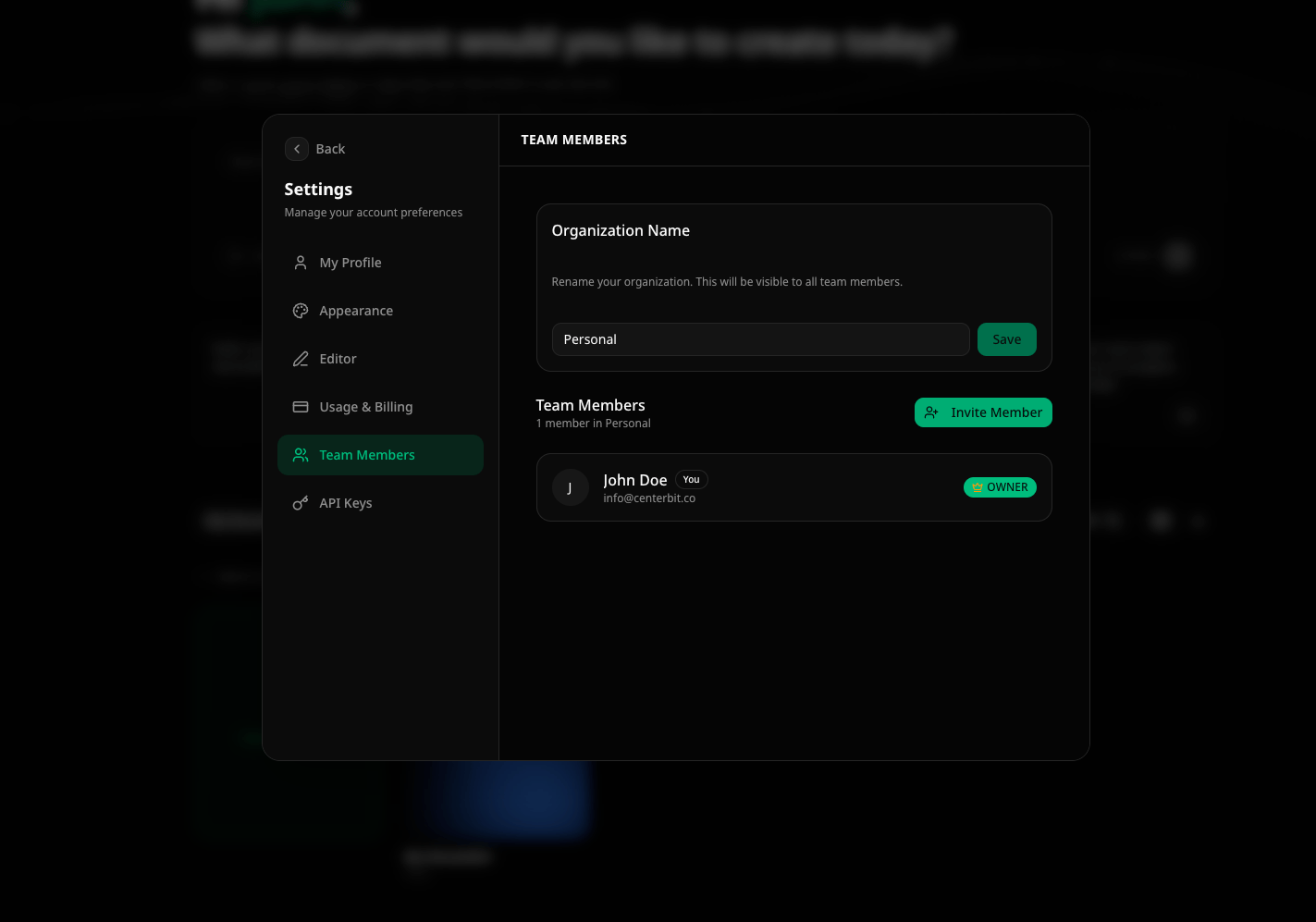
Team management is available on the Team plan and above. Engine, Editor,
and Pro are single-seat plans.
Organization ownership
Currently, each user can only own and manage one organization. This is due to how billing is structured — the organization owner is responsible for the subscription and all credit usage within the organization. However, a user can be a member of multiple organizations and switch between them freely. Billing and member administration depend on the user’s role in the active organization.Inviting members
- Enter the email address of the person you want to invite
- Select their role: Admin or Member
- Click “Send Invite”
Roles
Managing members
Click the ⋮ menu next to a member to:- Change role — promote or demote between Admin and Member
- Remove — revoke access to the organization
API Keys
Create and manage API keys for programmatic access to Autype.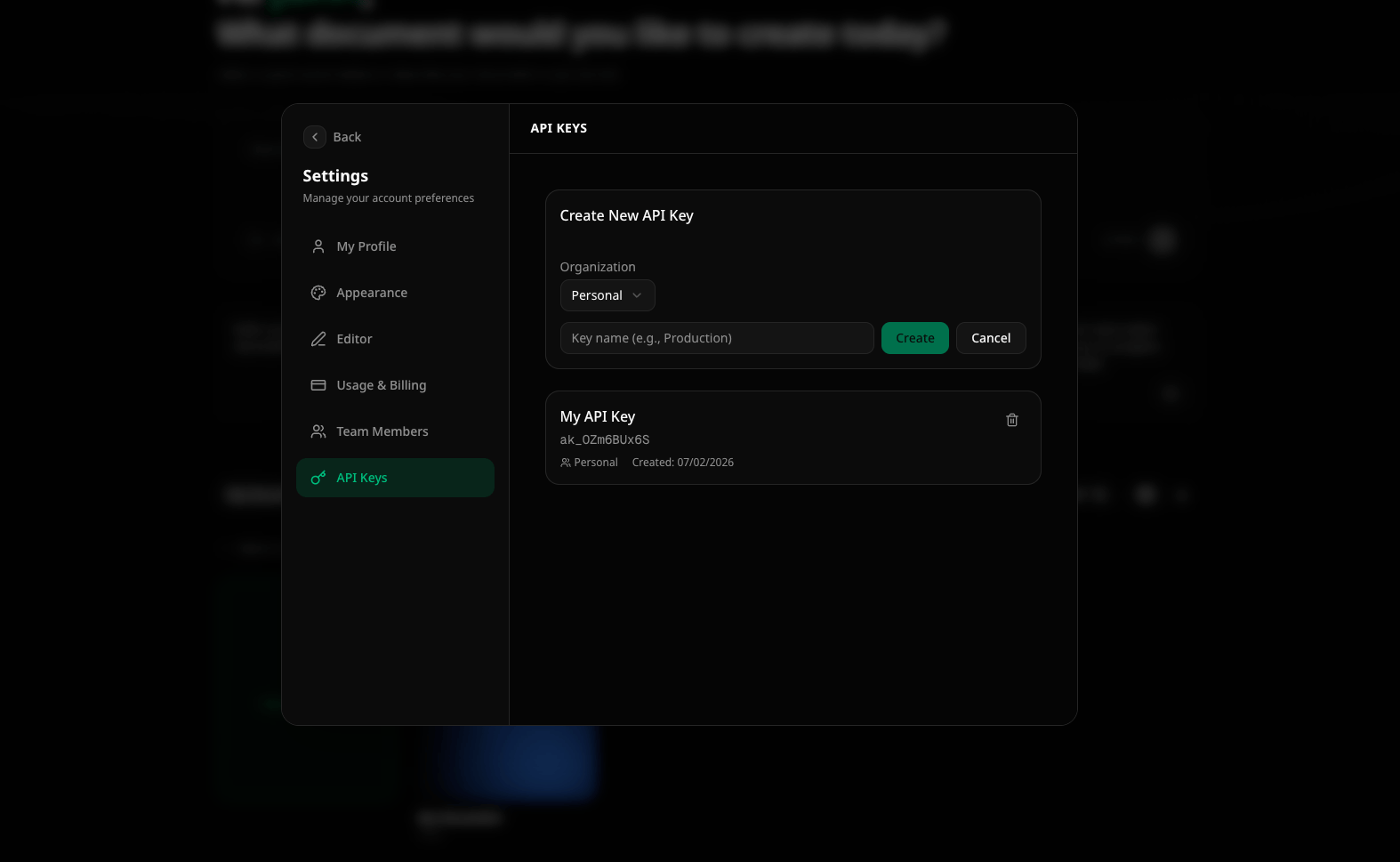
Creating an API key
- Select the organization the key belongs to
- Click “Create API Key”
- Enter a name for the key (e.g., “Production”, “CI/CD”)
- Select the scopes (permissions) the key should have
- Optionally set an expiration date
- Click “Create”
Managing API keys
Each key shows:- Name and key prefix (first characters for identification)
- Scopes — which operations the key can perform
- Created date and last used date
- Expiration — when the key becomes invalid (if set)