Layout
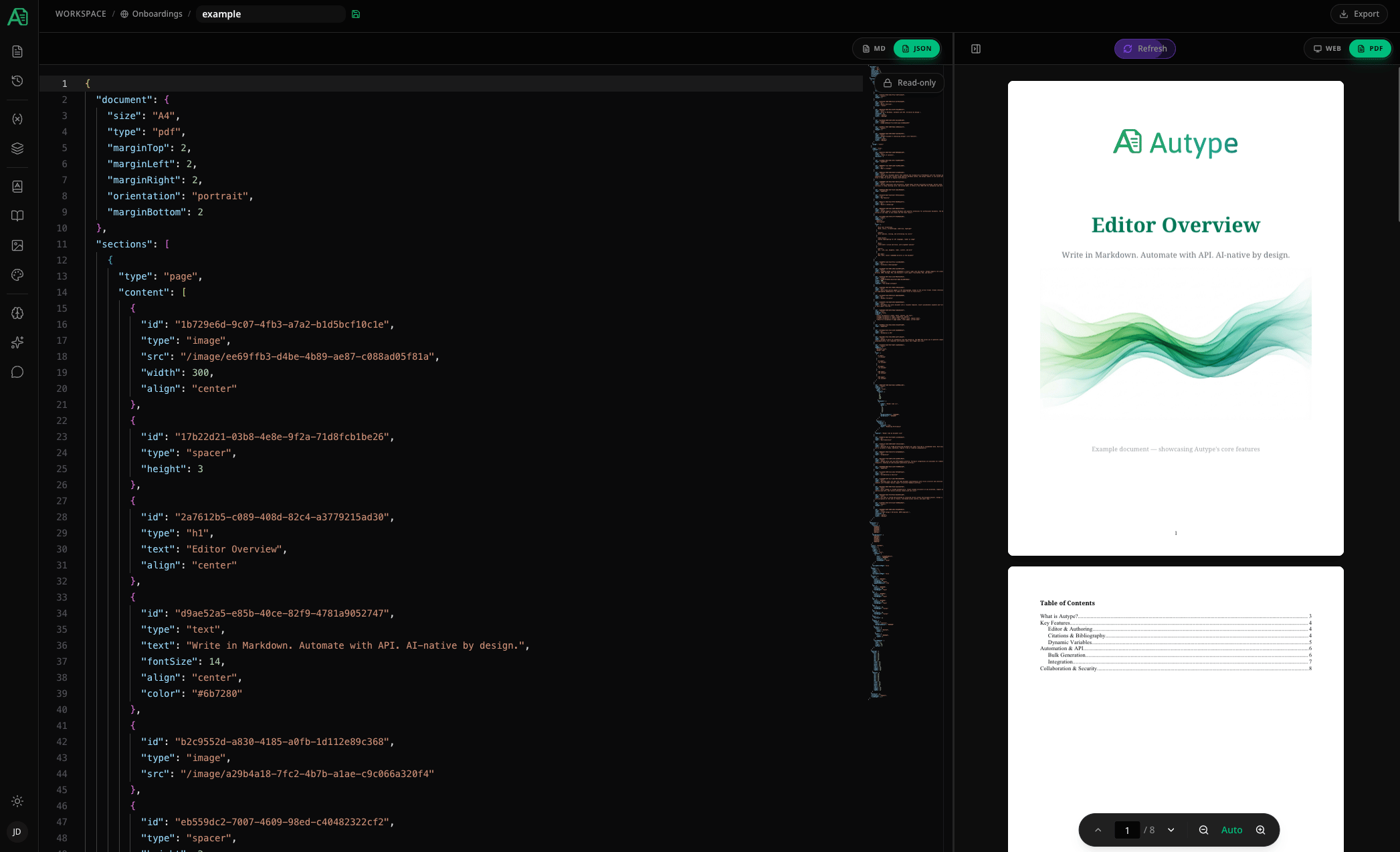
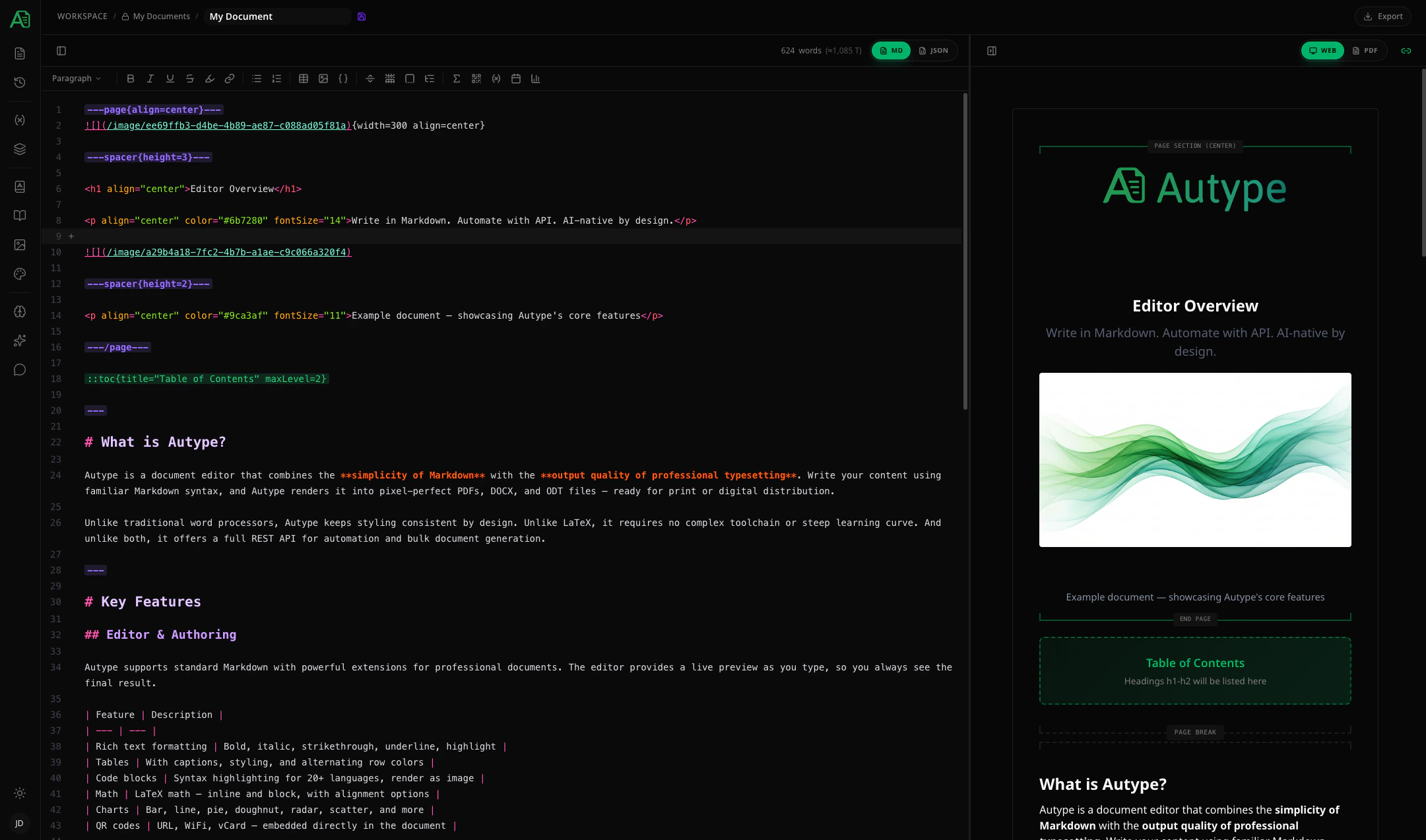
The editor has three main areas:
On mobile, the editor and preview are shown as separate tabs — switch between them with the Editor / Preview toggle.
Toolbar
The toolbar provides quick access to formatting and inserting elements. Hovering over any toolbar button shows a tooltip describing its function.
Block type selector
A dropdown at the left of the toolbar lets you change the current block type:Inline formatting buttons
To apply formatting, select the text you want to format first, then click the corresponding button. To remove formatting, select the formatted text (including the Markdown syntax characters) and click the button again.Insert menus
The toolbar includes additional buttons and dropdown menus for inserting:- Bullet List / Numbered List — toggle list formatting
- Table — insert a table with a size picker
- Image — standard Markdown image or image directive
- Code Block — insert a fenced code block
- Spacer — insert vertical spacing (1–3 lines or custom px)
- Page Break — insert a page break (portrait or landscape)
- Page Section — insert a page section with alignment (top, center, bottom)
- Indices — TOC, list of figures, list of tables, list of abbreviations, bibliography
- Math — insert a block math expression
- QR Code — URL, WiFi, or vCard
- Variable — insert an inline variable reference
- Date — insert a dynamic date variable with format, offset, and timezone
- Chart — bar, line, pie, doughnut, radar, polar, scatter, bubble
- Form Field — text, number, date, choice, signature, and initials controls
- Write with AI — generate a block from a prompt and preview it before insertion
Preview modes
The preview pane supports PDF and Web modes. PDF is the default and the source of truth for page layout. The Web preview is a faster structural approximation.Web preview (HTML)
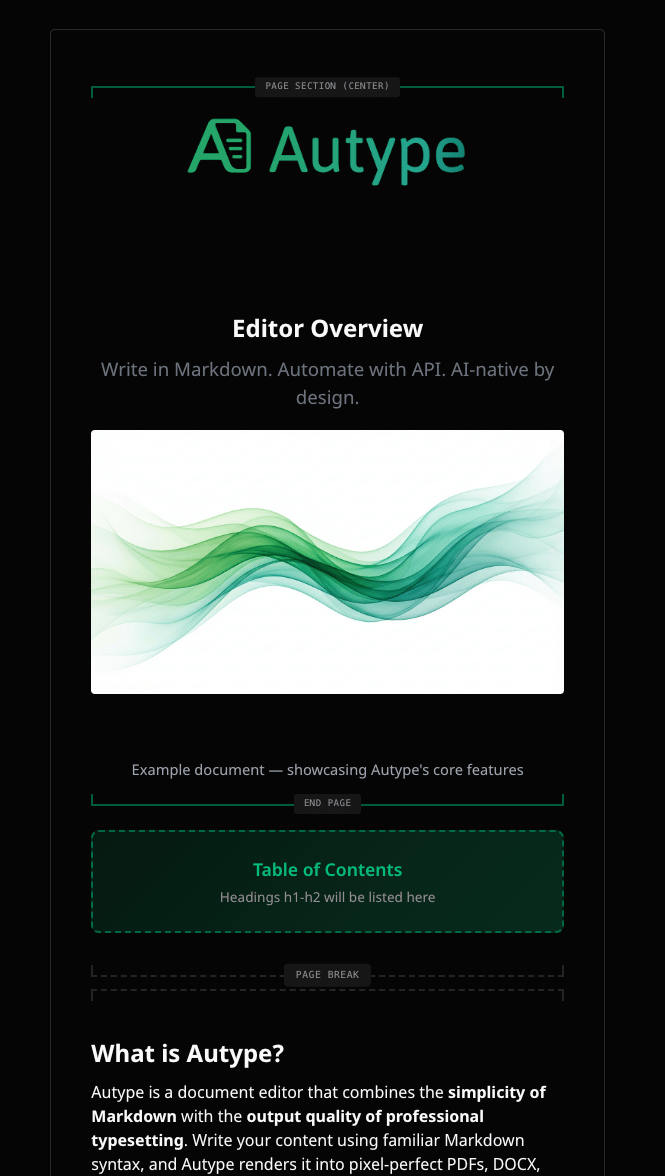
- Renders your document as styled HTML in real time — updates instantly as you type
- Shows variable placeholders as-is (not yet processed), so you can see where variables are used
- Best for everyday writing and editing — the instant feedback makes it ideal for checking that your Markdown syntax is interpreted as expected
- Shows a close approximation of the final output, though page layout details (margins, headers, footers, page breaks) are not represented
PDF preview
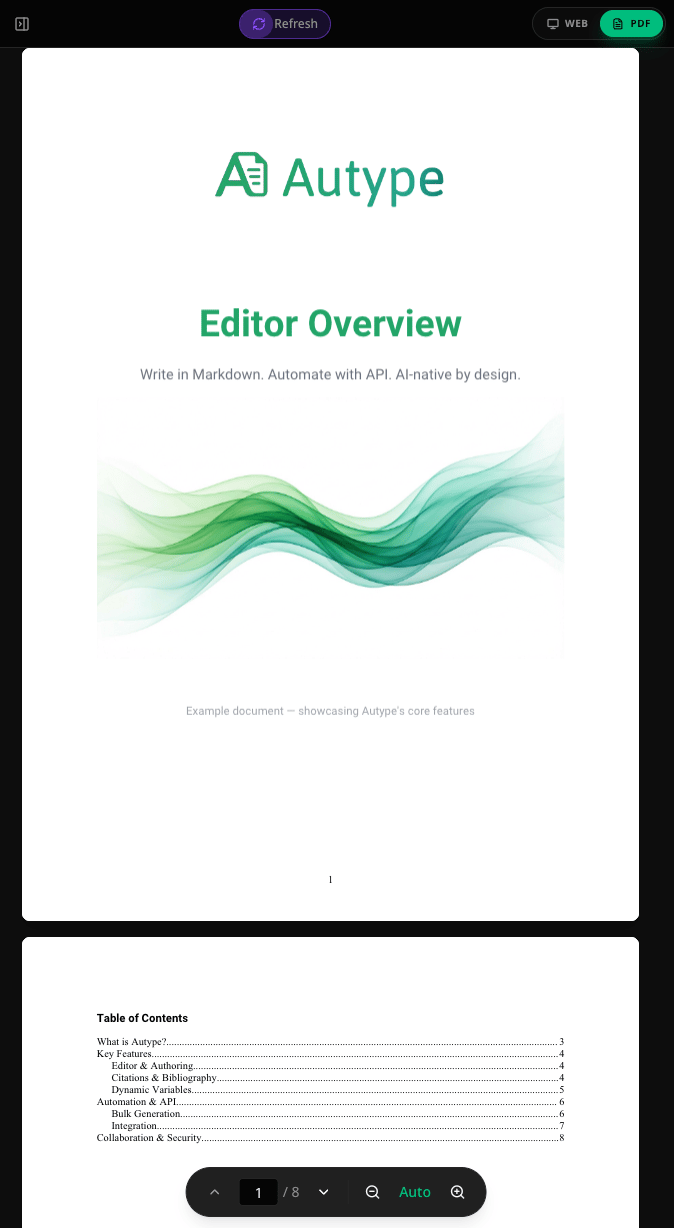
- Shows the fully rendered document exactly as it will look when exported — including page layout, margins, headers, footers, and page breaks
- Best for fine-tuning layout and verifying the final appearance of your document
- A new render is triggered after saving (either via the auto-save interval or a manual save)
- A refresh indicator shows when a new render is in progress
Rendering time depends on document size and current server load — it can take up to 1 minute for large documents. Documents with many images will take longer to render.
Auto-save
When you work alone, changes are saved directly through the API after a short autosave delay. The editor coalesces rapid edits instead of sending every keystroke as a full document update. You can trigger a manual save by pressing ⌘S (Mac) or Ctrl+S (Windows/Linux), or by clicking the save icon next to the document name in the top bar.Save icon states
The save icon next to the document name indicates the current sync status:
Versions are created independently from autosave and remain available through
the Version History panel.
Wait for the saved indicator before closing the page on an unstable
connection. Use the manual save shortcut whenever you want an immediate API
save.
Real-time validation
The editor highlights syntax errors and warnings directly in the code. Clicking on an error or warning navigates you directly to the line where the problem occurs. Hover over an underlined section to see the error message in a tooltip.Errors
Red underlines indicate syntax errors — for example, invalid attribute values or unclosed directives. Documents with errors cannot create a new version and will not trigger a new PDF render or any other export format.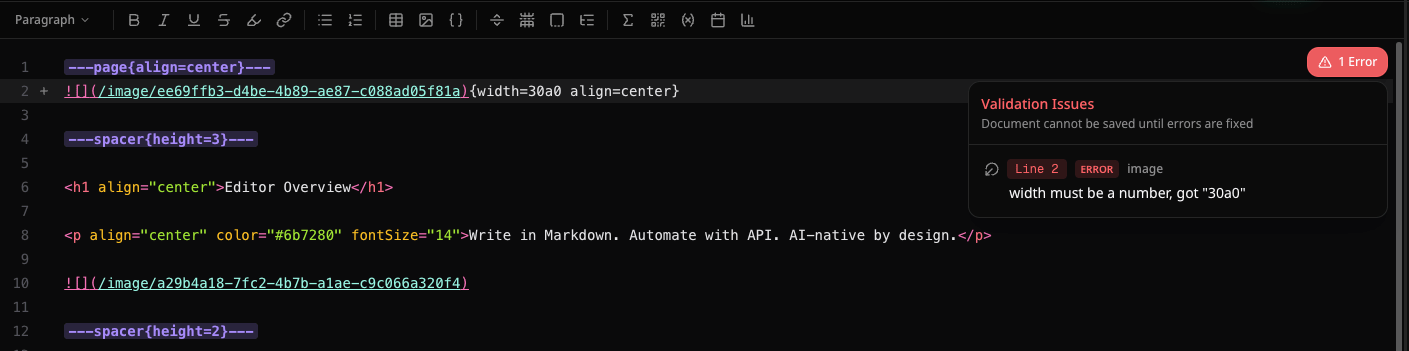
Warnings
Yellow underlines indicate warnings — for example, missing citation references or undefined abbreviations. Documents with warnings can still be saved and rendered normally, but you should review them to ensure the output is as expected.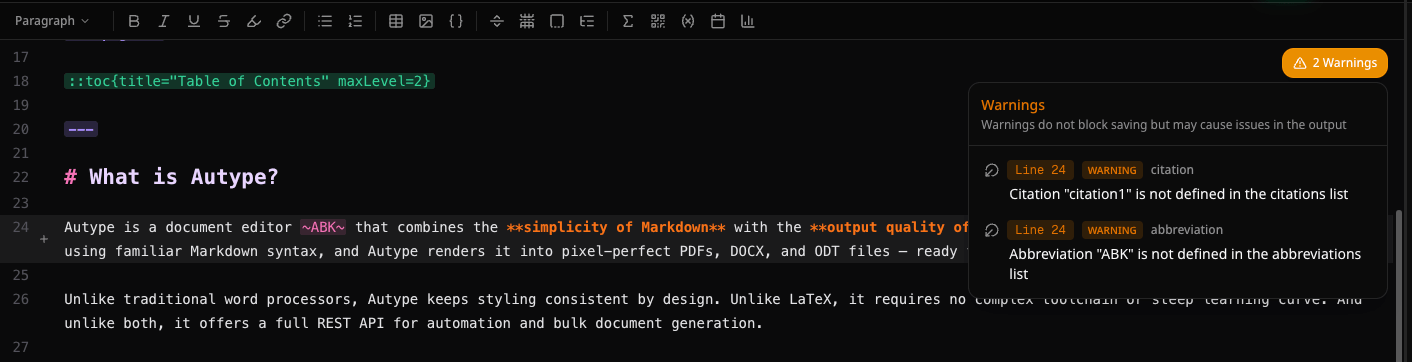
Real-time collaboration
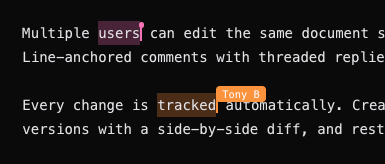
Real-time collaboration is activated per document and requires an eligible plan. A document uses one collaboration mode at a time: Write or Markdown. Documents without active collaboration continue to use normal API autosave. When multiple users have the same document open, their avatars appear in the top bar so you can see who is currently active.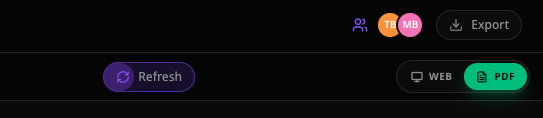
Export
Click the download button in the top bar to export your document: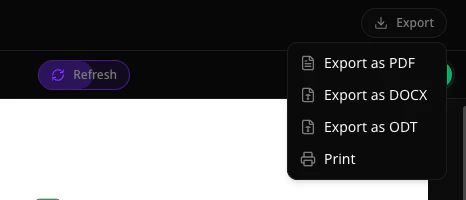
Sidebar panels
The sidebar on the left provides access to all document management panels. Click an icon to open the corresponding panel.Advanced JSON view
Enable Advanced view in Editor settings to inspect the raw JSON document schema. JSON remains the complete internal model and a fully supported API format, while Write and Markdown are the recommended interactive modes.