
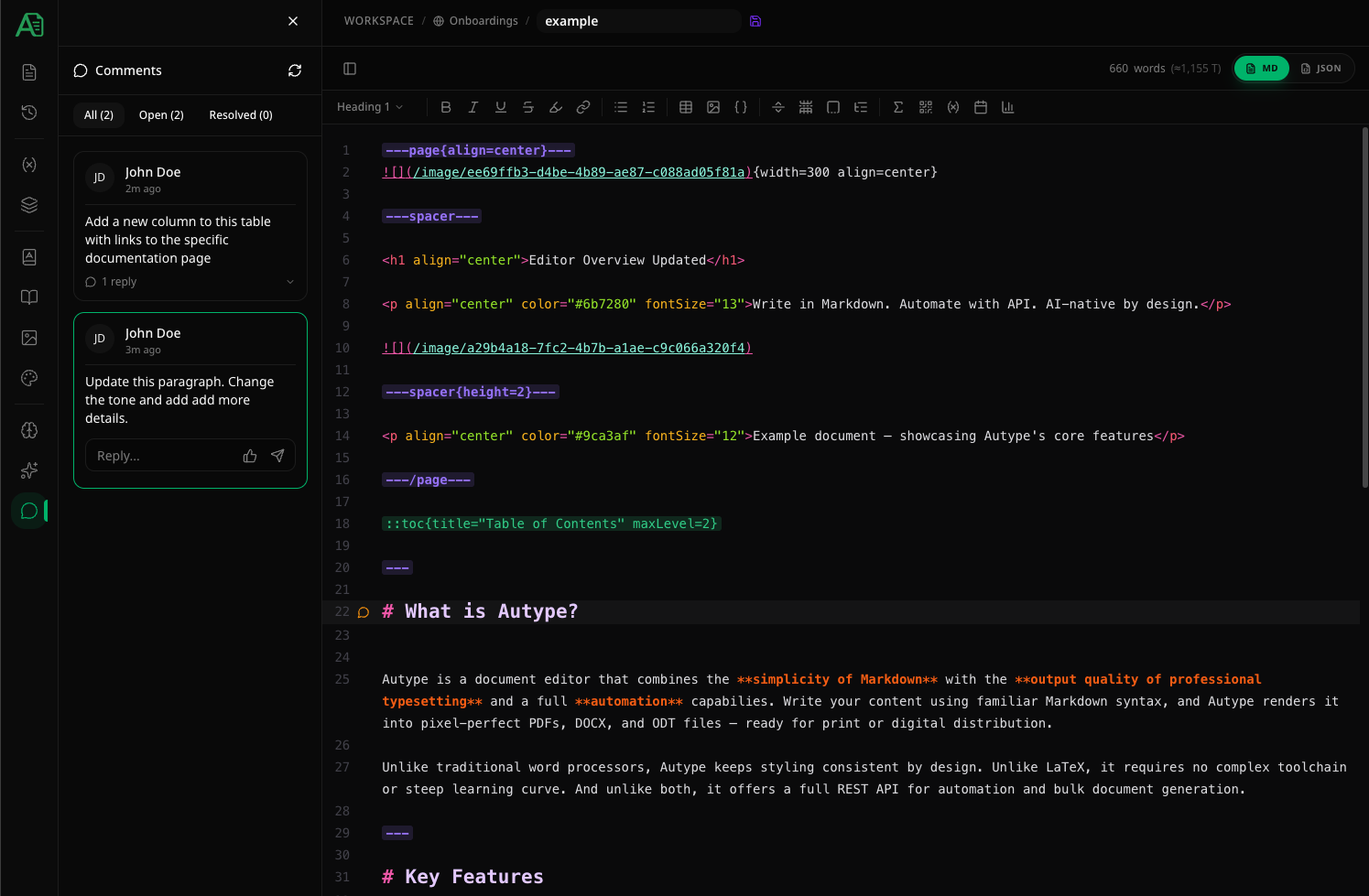
Creating a comment in Markdown
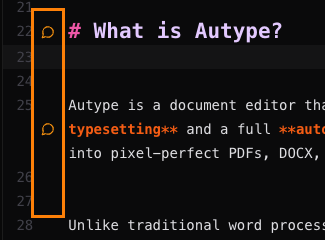
To add a comment, hover over the area between the line number and the text in the editor. A button appears on the current line.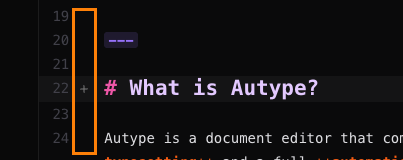
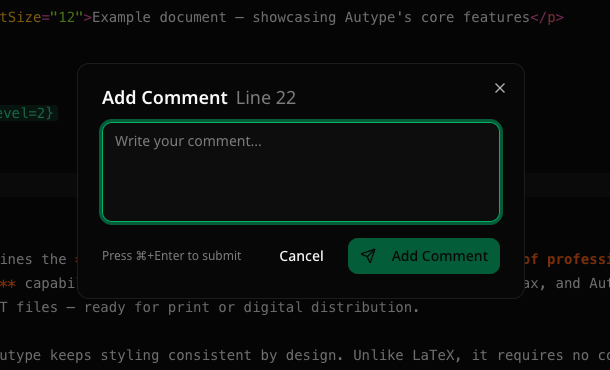
Creating a comment in Write mode
Right-click the visual block you want to discuss and choose Add comment. The same comment modal opens and stores an anchor adjacent to the corresponding Extended Markdown element. A comment icon appears to the right of the visual editor. Select it to open the Comments panel with that thread active.Comment anchor placement
Comment anchors are invisible markers embedded directly in your Markdown source. Where exactly the anchor is placed depends on the type of content you comment on:- Single-line elements (headings, paragraphs, list items, etc.) — the anchor is inserted on the same line, at the end of the text.
- Multi-line elements (code blocks, tables, lists, blockquotes, etc.) — the anchor is placed on a new line directly below the element. Commenting on any item within a list or any row within a table will place the anchor after the entire block. This is because inserting a marker inside a multi-line block would break its syntax.
Anchor movement during editing
Because anchors live inside the document text, they behave like any other character when you edit around them:- Pressing Backspace at the beginning of the line below the comment icon will delete the anchor. This happens because the anchor marker is stored at the end of that line — pressing Backspace merges the lines and removes the anchor in the process.
- Deleting lines above the anchor shifts it upward.
- Adding lines above the anchor shifts it downward.
If the anchor ends up in an unexpected position after editing, you can always click the comment in the sidebar to jump to its current location in the editor.
Viewing comments
The sidebar lists all comment threads for the current document. Each card shows the author’s avatar, name, timestamp, and the comment text.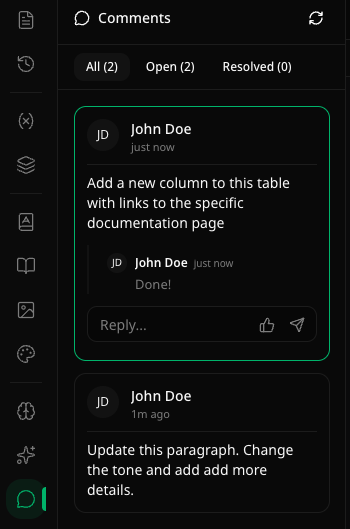
Filter tabs
When comments exist, three filter tabs appear at the top:Navigating between editor and comments
Comments and the editor are linked bidirectionally:- Sidebar → Editor: Click a thread to jump to its Markdown line or visual block.
- Editor → Sidebar: Click the amber comment icon in the Markdown gutter or beside the visual editor to open and select the thread.
Thread actions
Hover over a comment thread and click the menu to access actions: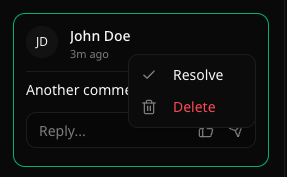
- Resolve — marks the thread as resolved. Resolved threads appear grayed out and move to the Resolved filter tab. You can reopen a resolved thread from the same menu.
- Delete — permanently removes the thread (only available for your own comments).
Replies
When a thread is expanded (selected), a reply input appears at the bottom. Type your reply and press Enter to send. You can also use quick emoji reactions (👍 ❤️ 🎉 👀) via the button when the input is empty.Orphan comments
Comment anchors are embedded in your document as hidden markers. If you delete the line that contains an anchor, the comment loses its position in the document.When a comment anchor is removed (e.g., by deleting the line), the comment is not automatically deleted. It remains in the sidebar but is grayed out with an amber “Removed from document” warning. You can still read it, but replying is disabled. To fully remove it, delete the thread manually via the menu.