
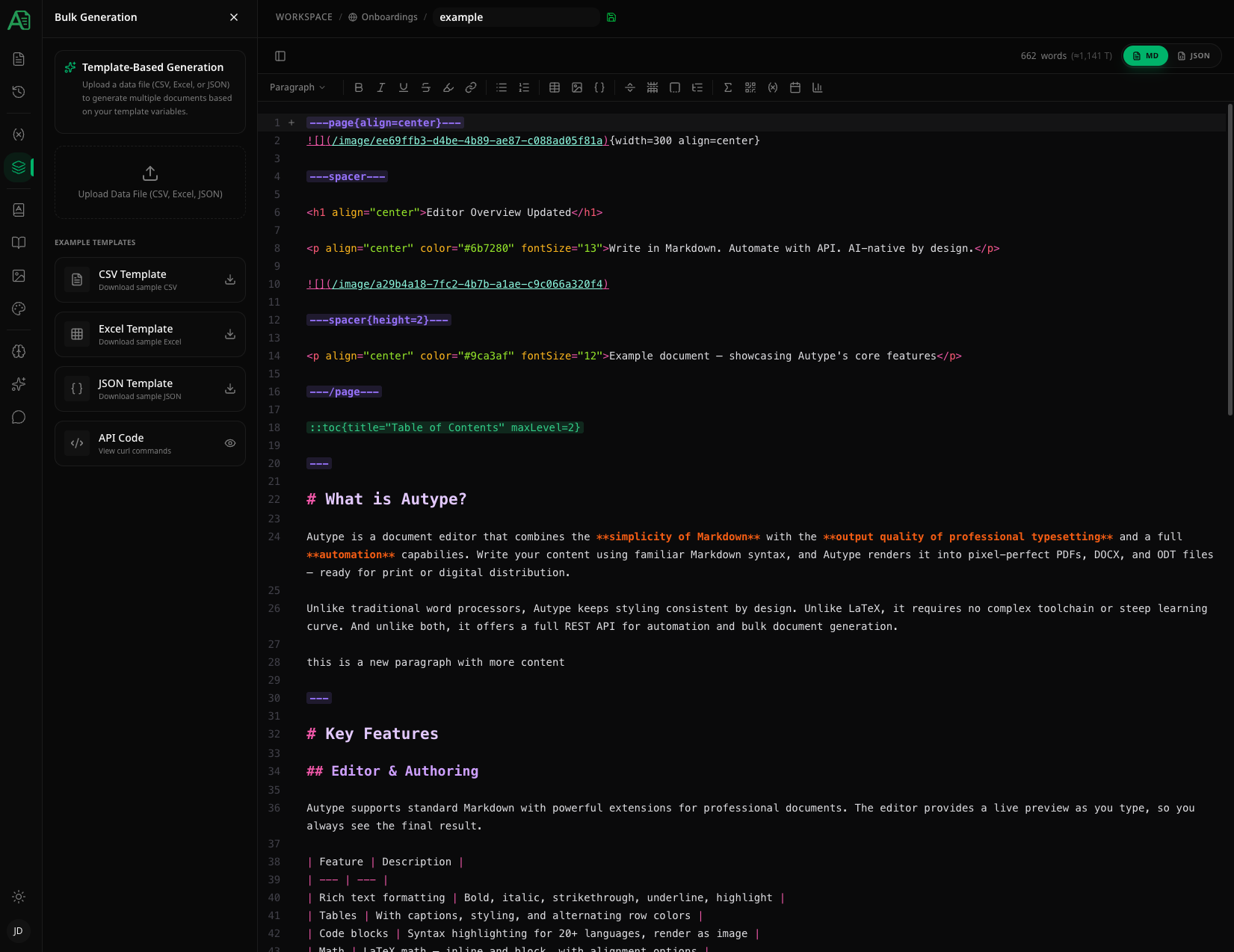
Your document must have at least one variable defined before you can use bulk generation. Variables act as placeholders that get replaced with values from your data file.
Getting started
Open the document editor, select Records, then Import & bulk. Use the temporary bulk generation workflow for one-off exports; choose Import when you want to keep the rows as persistent records. Older layouts may show a separate Bulk Generation panel. There are two ways to use bulk generation:- Upload a data file — download one of the pre-filled template files, fill it with your data, and upload it back
- Use the API — use the pre-generated curl commands for programmatic integration into your own workflows
Download a template
At the bottom of the panel, you’ll find three downloadable template files. Each template is pre-filled with your document’s variable names as column headers or keys, so you know exactly which fields to fill in.API integration
Click the API Code button to open a modal with ready-to-use curl commands for triggering bulk generation via the Developer API. The commands include your document ID and variable structure, so you can copy-paste them directly into your terminal or integration scripts.Uploading data
Drag and drop a file onto the upload area, or click to browse. Supported formats are CSV, Excel (.xlsx, .xls), and JSON.
After uploading, you’ll see the file name and size displayed in the panel, along with the output format selector and action buttons.
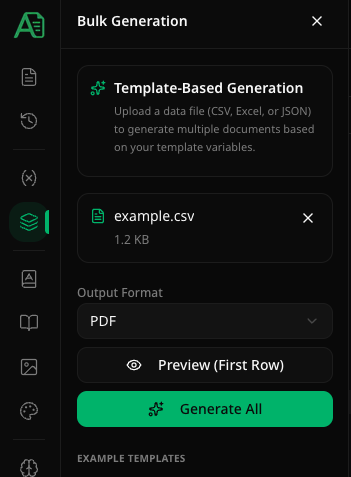
Output format
Choose the output format for all generated documents:Preview (First Row)
Before generating all documents, you can click Preview (First Row) to render a single document using only the first row of your data file. This lets you verify that variables are mapped correctly and the output looks as expected — without consuming resources for the full batch. The preview file is automatically downloaded once rendering is complete.Generating documents
Click Generate All to start the bulk generation job. The panel shows a progress bar with the number of completed and failed items in real time. During processing, each row from your data file is rendered as a separate document. Depending on document size and server load, this can take anywhere from a few seconds to several minutes for large batches.Downloading results
Once the job is completed, a Download ZIP button appears showing the number of successfully generated files.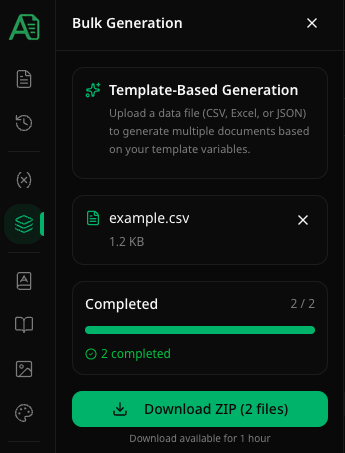
The download link is available for 1 hour after the job completes. After that, the ZIP file is automatically cleaned up and you would need to run the job again.
Failed items
If some items fail during generation, the panel shows a Failed Items section that you can expand. Each failed item displays:- The item index (row number from your data file)
- The error message explaining what went wrong
- A preview of the variables that were used for that item