
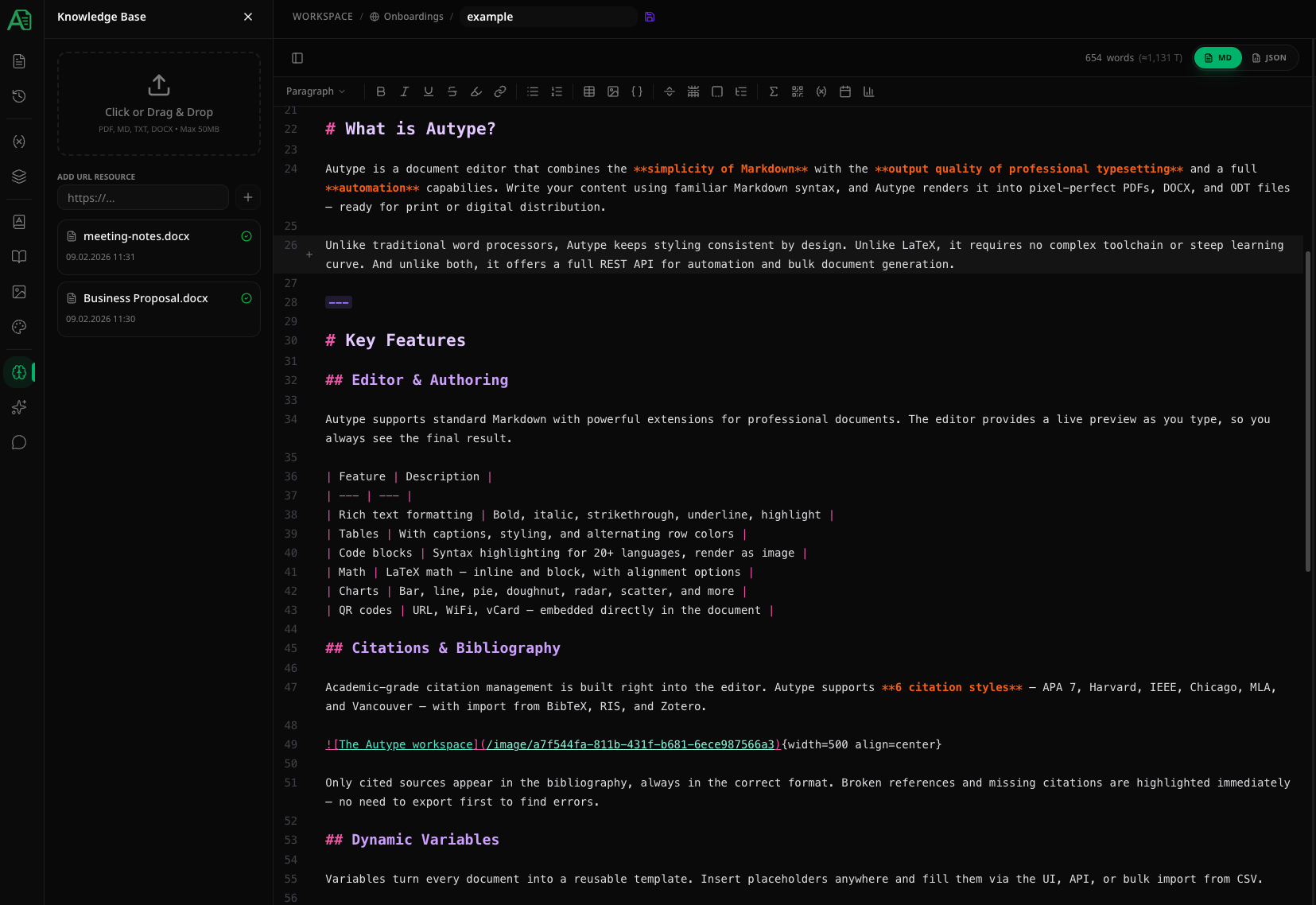
Adding knowledge
There are two ways to add resources:File upload
Click or drag & drop files into the upload area at the top of the panel. Multiple files can be uploaded at once.| Constraint | Value |
|---|---|
| Formats | PDF, Markdown (.md), Plain Text (.txt), Word (.docx) |
| Max file size | 50 MB |
URL resource
Enter a web URL in the Add URL Resource field and press Enter or click the button. The content of the page is fetched and processed automatically.Processing status
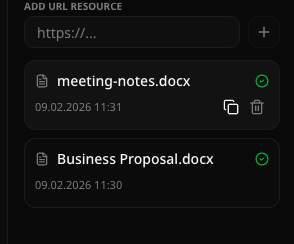
After uploading a file or adding a URL, the resource must be processed before the AI can use it. Each item shows a status icon on the right:| Icon | Status | Meaning |
|---|---|---|
| Pending | Queued for processing | |
| Processing | Currently being analyzed | |
| Ready | Successfully processed — available to the AI | |
| Failed | Processing failed (hover for details) |
The panel automatically checks for status updates while items are still processing. Wait until you see the green icon before using the AI assistant with that resource.
Managing items
Each knowledge item shows the filename (or URL), upload date, and a type icon ( for files, for URLs). On hover, two actions appear:- Copy ID — copies the internal asset ID to your clipboard
- Delete — permanently removes the resource from the knowledge base
Using knowledge in the AI assistant
Once your resources are processed, switch to the Assistant panel () and enable the knowledge base toggle. The AI will then use your uploaded documents and URLs as context when answering questions or generating content.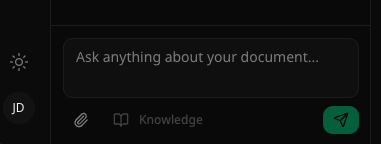
If the knowledge base is empty (no resources uploaded), the Knowledge toggle in the Assistant panel is disabled and cannot be activated.